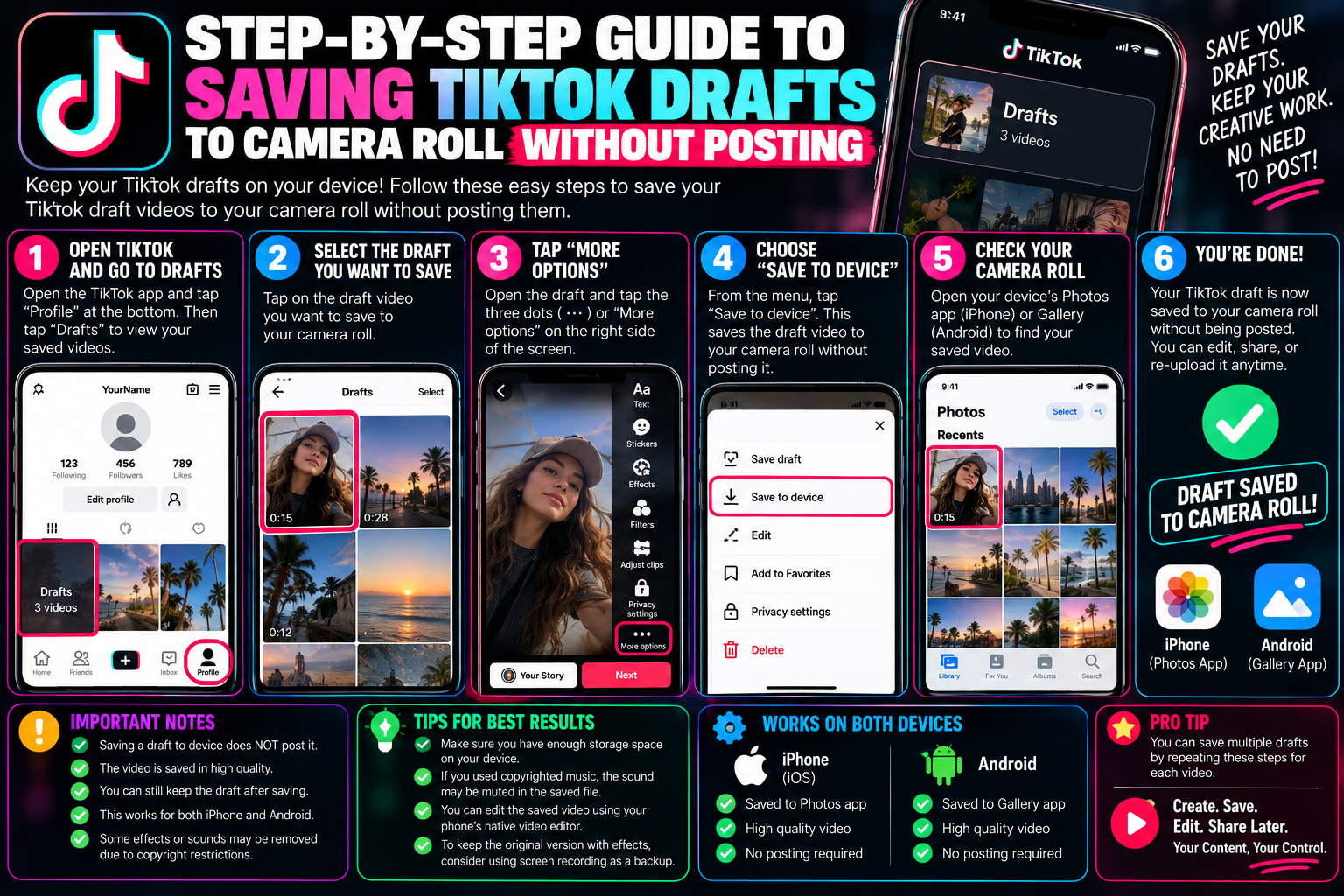
How to Save TikTok Drafts to Camera Roll Without Posting
TikTok houses some of the most intuitive mobile video editing features available, offering quick cut tools, voice filters, sound synchronization, and green-screen overlays. Because of this, many creators record and edit their content inside TikTok even when their ultimate goal is to publish the finished video elsewhere—such as on Instagram Reels, YouTube Shorts, or a private portfolio.
The friction point is that TikTok provides no direct “Export Draft to Photos” button. Draft files are saved in the app’s local sandbox, meaning if you uninstall the app or lose your phone, your unposted edits vanish. Fortunately, you can pull clean, high-resolution drafts directly into your smartphone’s camera roll without ever displaying the clip to your followers or the public feed.
Why Drafts Are Stuck Inside the App
When you record clips and hit “Drafts,” TikTok compiles your sequence into a cached project file tied to your specific installation.
Understanding these limitations helps prevent sudden data loss:
-
Local Storage Isolation: Drafts do not automatically sync to TikTok’s cloud servers. If you switch to a new phone, your drafts will not appear on the new device.
-
Cache Eviction Risk: Running aggressive storage cleanup tools on Android or offloading the TikTok app on iOS can wipe draft caches permanently.
-
No Direct Export: TikTok prefers to keep users inside its ecosystem. There is no simple one-tap button to download an unpublished project without proceeding to the posting sequence.
To circumvent these restrictions, creators use private publishing workflows or screen recording workarounds.
Method 1: The “Only Me” Private Upload Method (Highest Quality)
The most reliable way to extract a draft at full 1080p resolution with synchronized audio is the private upload workflow. Because you restrict audience permissions before hitting post, the video never touches the public For You Page (FYP) or alerts your followers.
Open Your Draft and Configure Options
-
Go to your Profile tab and tap the Drafts folder on your grid.
-
Select the draft project you want to export to open the editor.
-
Tap Next to proceed to the final Post Settings screen.
Lock Down Privacy Permissions
-
Under “Who can watch this video”, change the setting from Everyone to Only you.
-
Scroll down and tap More options.
-
Toggle on Save to device. This command tells TikTok to write the final rendered MP4 directly to your device storage upon upload completion.
-
Turn off Allow comments, Allow Duet, and Allow Stitch as an added precaution.
Post Privately and Save
-
Tap the pink Post button.
-
Because privacy is restricted to “Only you,” the video uploads privately directly to your locked archive tab (the padlock icon on your profile).
-
If “Save to device” was enabled, the processed video will now appear directly inside your camera roll.
-
If it does not appear automatically, navigate to your profile, tap the Padlock tab, open the video, tap the three dots (…), and select Save video.
-
You can now delete the private video from TikTok if you no longer want it stored on your profile.
Method 2: Exporting Without Watermarks via Web Extractor
When TikTok executes the “Save to device” command during a private post, it often burns the shifting watermark into the exported file. If your goal is to repurpose this draft cleanly across other platforms, use this secondary step:
-
Follow the steps above to post the video under “Only you” privacy.
-
Open the video from your profile’s Padlock tab.
-
Tap the three dots (…) or the Share arrow and tap Copy Link.
-
Open your mobile browser and navigate to a processing tool like tiksave.org.
-
Paste your link to fetch the unwatermarked original source stream and download the pristine MP4 directly to your camera roll.
This delivers a clean, broadcast-ready vertical video containing all your TikTok voice filters, background music, and timing edits without competitor branding.
Method 3: The Full-Screen Preview Workaround (Zero Uploads)
If you strictly refuse to let the video touch TikTok’s servers—even under private settings—you can capture your draft using native mobile screen recording.
On iPhone (iOS)
-
Ensure Screen Recording is enabled in your iOS Control Center (Settings $\rightarrow$ Control Center $\rightarrow$ Add Screen Recording).
-
Open TikTok, navigate to Drafts, and open the project.
-
On the editing screen, tap the full-screen preview button or tap the center of the clip so all editing tools and UI buttons disappear.
-
Swipe down your Control Center, start the screen recording, let the draft play completely from start to finish, and stop the recording.
-
Open your iOS Photos app, select the screen recording, tap Edit, and crop the top and bottom borders to remove the status bar.
On Android
-
Swipe down the quick settings shade and tap Screen Recorder.
-
Set sound input to Media sounds (internal audio) to avoid capturing room noise.
-
Open your draft inside TikTok, trigger full preview mode, and record the playback.
-
Use your default Gallery editor or a mobile app to crop the frame back to a clean 9:16 aspect ratio.
Note: While zero data is uploaded to servers, this method captures compressed screen-rendering output rather than the original source bitrate.
Managing and Protecting Your Drafts
To keep drafts safe from corruption or sudden deletion:
-
Avoid App Offloading: Never use automatic storage offloading on iOS for TikTok, as this purges temporary project containers.
-
Clear App Cache Carefully: When using TikTok’s “Free up space” tool, only wipe the Cache pool. Never clear the Drafts partition.
-
Export Immediately: Make it a habit to export any high-effort edit to your camera roll using Method 1 right after assembling the timeline.
Frequently Asked Questions
Will my followers see my video if I select “Only Me”?
No. Setting visibility to “Only you” locks the post away from feeds, follower alerts, and external searches. It is visible solely under your account’s private lock tab.
Why did all my TikTok drafts disappear suddenly?
Drafts vanish if you uninstall and reinstall the TikTok app, log out of your account on certain app versions, or switch to a new phone. Draft projects live on local device storage, not in your account’s cloud profile.
Can I save a draft with copyrighted music intact?
Yes. When using the “Only Me” upload method, TikTok renders the audio track alongside the video into your camera roll. However, if you plan to repurpose that video on YouTube Shorts or Instagram Reels, ensure the sound complies with the respective platform’s commercial licensing.