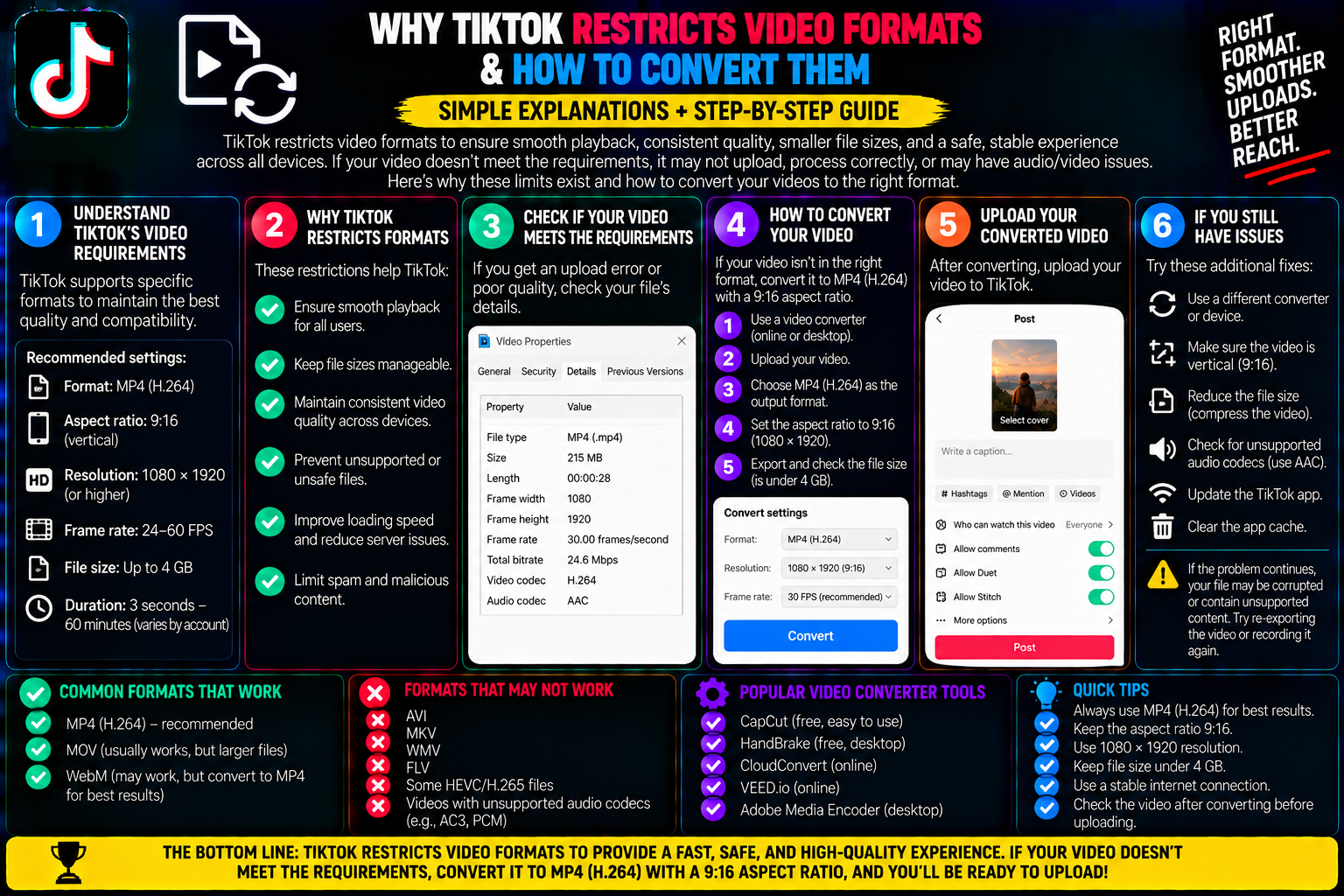
Why TikTok Restricts Video Formats & How to Convert Them
You spend hours editing a cinematic montage, color grading camera clips, and balancing sound effects. You hit render, export the finished video, and attempt to upload it to TikTok.
Instead of seeing the upload complete bar reach one hundred percent, you hit an unexpected wall.
The app freezes at ninety-nine percent, displays an error message stating the file format is unsupported, or uploads a corrupted video with audio playing over a completely black screen.
If you edit on desktop software or record video across multiple cameras, encountering video format errors is common.
Many creators assume that video files are interchangeable as long as they play smoothly on a computer. However, social media platforms operate under strict server guidelines.
TikTok processes millions of video hours daily, requiring aggressive restrictions on containers, compression codecs, and audio wrappers to keep its mobile feed fast and lightweight.
Understanding why TikTok enforces these file rules, which formats consistently fail, and how to convert your footage using free tools will ensure your uploads publish cleanly every time.
The Difference Between Video Containers and Video Codecs
To solve format errors, you first need to understand how digital video files are built. A video file has two distinct layers: the container and the codec.
The container is the file extension you see at the end of your filename, such as .mp4, .mov, .mkv, or .avi. Think of the container as a shipping box. Inside that box are two separate components: a video stream and an audio stream.
The codec (short for compressor-decompressor) is the internal mathematical formula used to compress raw pixels and sound waves into that box.
Common video codecs include H.264 (AVC), H.265 (HEVC), Apple ProRes, and AV1. Common audio codecs include AAC, MP3, and uncompressed PCM.
This distinction is why format errors often feel unpredictable. You can upload an .mp4 file that TikTok rejects entirely.
While the outer container is an MP4, the internal video stream may be encoded using a legacy codec like MPEG-2 or a broadcast format like Apple ProRes that TikTok’s mobile ingestion engines cannot decode.
Why TikTok Restricts Specific File Formats
TikTok’s video restrictions are not designed to inconvenience creators. They are built around mobile infrastructure and data economics.
1. Instant Mobile Playback Across Diverse Hardware
When a user scrolls through the For You Page, the next video must begin playing within a fraction of a second. If TikTok allowed heavy broadcast formats like Apple ProRes or Avid DNxHD, every clip would require tens of megabytes of bandwidth just to buffer the first three frames.
By requiring efficient consumer codecs like H.264, the platform ensures that older smartphones on 4G networks can decode video streams smoothly without draining battery life or overheating.
2. Cloud Server Processing Costs
Every video uploaded must be transcoded into multiple lower-resolution copies (such as 720p, 540p, and adaptive bitrate streams) so users on slow cellular connections can still watch without interruption.
If TikTok allowed hundreds of obscure codecs (such as MKV, WMV, FLV, or raw AVI), its servers would have to maintain vast software libraries to process them.
Restricting uploads to standard MP4 and MOV containers running H.264 simplifies server pipelines, speeding up processing queues for everyone.
3. Licensing and Royalty Fees
Certain modern codecs, particularly HEVC (H.265), involve fragmented patent pools and licensing royalty fees for commercial platforms.
H.264 remains the universal, open industry standard with predictable decoding royalties, making it the most cost-effective format for global distribution.
The Formats That Regularly Fail on TikTok
If your video refuses to upload or renders with missing visuals, it usually contains one of these incompatible formats:
-
MKV (Matroska): Popular among screen recorders like OBS Studio, stream rippers, and PC gamers. TikTok’s mobile and web clients do not accept MKV containers.
-
AVI and WMV: Legacy Windows video containers that use outdated compression methods incompatible with modern mobile HTML5 streaming players.
-
Apple ProRes 422 / 4444: Broadcast-quality master codecs exported from Final Cut Pro or DaVinci Resolve. The file bitrates are too high for mobile social ingestion pipelines.
-
VP8 / WebM (on Mobile Apps): While TikTok’s desktop developer API accepts certain WebM variants, uploading raw WebM files via mobile apps frequently leads to container parsing errors.
-
Dolby Vision 10-bit HDR: If you shoot high-dynamic-range video on an iPhone and upload without converting down to standard 8-bit Rec.709, TikTok’s transcoder often strips the color profile, leaving your footage washed out and gray.
TikTok’s Ideal Format Specification
To pass through TikTok’s automated ingestion filters with zero conversion delay, export your files using these settings:
-
Container: MP4 (preferred) or MOV
-
Video Codec: H.264 (High Profile, Level 4.2)
-
Audio Codec: AAC-LC (Stereo, 48 kHz, 128 to 320 kbps)
-
Resolution: 1080 x 1920 pixels (9:16 vertical orientation)
-
Frame Rate: 30 fps or 60 fps (Strict Constant Frame Rate)
-
Bitrate: 8 Mbps to 12 Mbps for 1080p video
-
Color Space: 8-bit Rec.709 (SDR)
How to Convert Any Incompatible Video to TikTok Specs (Free Tools)
If you already have a video saved in an unsupported format, you do not need to re-record your footage or purchase expensive conversion utilities.
Method 1: The Fast Desktop Fix via HandBrake
HandBrake is a free, open-source video transcoder available for Windows, Mac, and Linux. It reliably converts any file into an upload-ready MP4.
-
Open HandBrake and drag your unsupported video (MKV, AVI, MOV, or ProRes) into the window.
-
In the Summary tab, set the format to MP4 and ensure Web Optimized is checked.
-
Click the Dimensions tab. Ensure your orientation is vertical (1080 width by 1920 height).
-
Click the Video tab. Set the Video Codec to H.264 (x264). Set the Framerate to 30 or Peak Framerate, and select Constant Framerate.
-
Set the Quality slider to a Constant Quality (RF) between 20 and 22 (this keeps the output visually lossless without inflating file size).
-
Click the Audio tab and confirm the track is set to AAC.
-
Choose your destination file path at the bottom and click Start Encode.
HandBrake will generate a clean MP4 file that uploads smoothly via the TikTok mobile app or desktop browser.
Method 2: Instant Re-Muxing via VLC Media Player
If your video is already encoded in H.264 but wrapped inside an unaccepted container like MKV, you can swap the container without re-compressing the video using VLC:
-
Open VLC Media Player on your computer.
-
In the top menu, click Media (on Windows) or File (on Mac) and select Convert / Stream.
-
Drop your unsupported video file into the window.
-
Under Profile, select Video – H.264 + MP3 (MP4).
-
Click the wrench icon next to the profile, set the encapsulation to MP4/MOV, and ensure Video and Audio checkboxes are set to keep the original track.
-
Choose a save location and click Start.
Because VLC simply shifts the underlying data into a fresh MP4 container without re-encoding frames, the process finishes in seconds.
Exporting Directly from CapCut, Premiere, and DaVinci
To avoid conversion steps entirely, configure your primary video editing software with compliant export presets:
-
In CapCut (Mobile or Desktop): When exporting your project, tap the resolution menu. Select 1080P, set the frame rate slider firmly to 30 fps, select MP4, and turn off HDR export.
-
In Adobe Premiere Pro: Select the H.264 format preset. Set your sequence dimensions to 1080×1920. Under Video settings, choose VBR 1-Pass with a target bitrate of 10 Mbps, and ensure the Audio tab is set to AAC Stereo at 320 kbps.
-
In DaVinci Resolve: On the Deliver page, select the Custom Export tab. Set the container to MP4, the codec to H.264, resolution to 1080×1920, and frame rate to 30. Under Advanced settings, confirm your color space tag is set to Rec.709.
Formatting your master files correctly before hitting upload eliminates processing errors, avoids server-side downsampling, and ensures your videos look crisp and professional the moment they hit the feed.
Tiksave.org