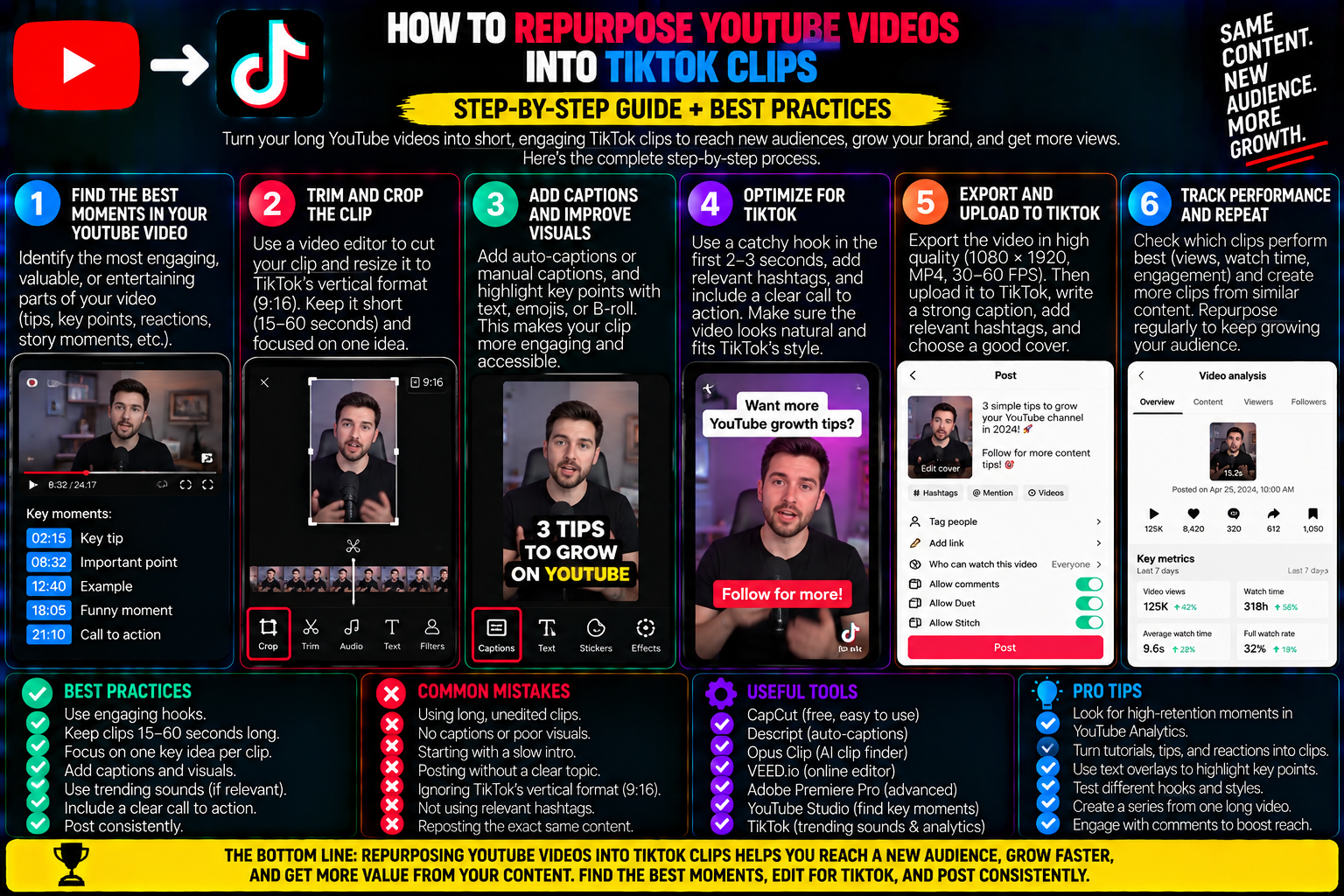
How to Turn YouTube Videos Into TikTok Clips for Free
Creating content from scratch every day is the fastest route to creator burnout. If you produce long-form videos on YouTube whether podcasts, tutorials, software walkthroughs, or commentary vlogs you are sitting on a goldmine of short-form material.
A single twenty-minute YouTube video easily holds three to five self-contained nuggets of high-value advice, punchy hot takes, or funny moments that can perform well on TikTok.
Yet, most creators repurpose videos the wrong way.
They take a horizontal 16:9 file, drop it onto a vertical canvas with massive black bars at the top and bottom, leave tiny illegible text on screen, and wonder why the clip dies at two hundred views.
Short-form audiences do not tolerate lazy aspect-ratio letterboxing.
To convert long-form horizontal video into high-performing vertical content, you must reframe the visual subject, rebuild the narrative hook, and synchronize dynamic subtitles.
You do not need to pay for expensive AI clipping subscriptions that add ugly watermarks to your footage.
Using free tools like CapCut Desktop, DaVinci Resolve, and modern audio-reframing techniques, you can set up a repeatable workflow that transforms horizontal YouTube masters into polished, native-feeling vertical TikTok clips.
1. What Makes a YouTube Clip Work on TikTok?
Repurposing is not about chopping your YouTube video into random sixty-second segments. YouTube and TikTok operate under completely different viewer psychologies:
On YouTube, viewers click with intent. They searched for a title, saw your custom thumbnail, and are willing to sit through a thirty-second introduction or channel greeting.
On TikTok, viewers scroll passively. They did not ask to see your video.
If your clip begins with “Welcome back to my channel, today we’re going to discuss…”, the viewer will swipe away before you finish the sentence.
Every repurposed clip must meet three strict editorial criteria:
-
Zero Context Dependency: The selected segment must make sense on its own. If the point requires having watched the previous five minutes of the YouTube video, the clip will fail.
-
The First-Second Hook: The clip must open on the core problem, a provocative opinion, or an immediate visual payoff. Start editing right on the speaker’s first energetic word—cut out the preceding breath, throat clearing, or pause.
-
A Tight 30-to-60 Second Window: While TikTok supports long uploads, repurposed snippets perform best between thirty and sixty seconds. This window is long enough to deliver an insightful payoff and short enough to maintain high completion rates.
2. Choosing Your Layout Strategy (Split Screen vs. Reframe)
Before touching your editing timeline, decide how your horizontal 16:9 footage will fit into TikTok’s vertical 9:16 frame. There are three effective layouts:
The Dynamic Center Crop (Talking Heads & Solo Creators)
If your YouTube video features a single person sitting in front of a camera, this is the cleanest approach.
You scale the 16:9 video up until the left and right edges spill off the canvas, filling the entire 1080×1920 vertical canvas with your subject.
You must keep the speaker’s eyes and mouth centered in the upper-middle quadrant of the frame so they stay clear of bottom captions and UI buttons.
The Stacked Split-Screen (Interviews, Podcasts & Screen Demos)
If your YouTube footage shows two people talking (like a podcast interview) or a speaker demonstrating something on a computer screen, cropping one subject cuts out the other.
The solution is a stacked canvas:
-
Place the speaker or facecam in the top half of the 9:16 frame.
-
Place the screen recording, slides, or conversation partner in the bottom half.
-
Add a subtle blurred border or a clean dividing line between the two video streams.
The Blurred Background Letterbox (Quick Gameplay & Tutorials)
If scaling the footage crops critical interface menus or game indicators that viewers need to see, do not leave empty black bars.
Duplicate your video clip onto a second track beneath the main video. Scale the background clip up to fill the vertical frame completely and apply a heavy Gaussian Blur filter.
Place your original, uncropped 16:9 clip sharp in the center. The blurred motion behind the video fills the screen naturally while keeping the original demonstration uncropped.
3. The Free Step-by-Step Editing Workflow in CapCut Desktop
CapCut Desktop is completely free, does not leave export watermarks on standard timelines, and includes built-in auto-reframing tools.
Step 1: Set Canvas to 9:16 Vertical
Launch CapCut Desktop and create a new project.
Before dragging in any media, click the Ratio button located directly beneath the video preview player and select 9:16.
This establishes your project canvas as a native 1080×1920 vertical format.
Step 2: Import and Trim Your Highlight
Import your horizontal YouTube master file.
Scrub through your footage to find your target moment. Set your in-point right as the speaker delivers their opening statement, cut the clip, and remove the rest of the timeline.
Trim out all filler words, long breaths, and pauses.
Step 3: Reframe the Subject
Select your video clip on the timeline.
In the upper-right inspector panel, go to the Video tab and locate the Basic or Auto Reframe tool.
If using Auto Reframe, select the 9:16 preset and click Apply. CapCut’s face-tracking engine will automatically pan across the horizontal video to keep the speaker centered in the frame, even if they shift around during recording.
If reframing manually, increase the Scale slider to roughly 180% to 200% and adjust the X Position so your subject sits squarely in the middle.
Step 4: Add Dynamic Auto-Captions
Click the Text menu in the top toolbar and select Auto captions.
Choose the language spoken in the video and click Generate.
CapCut will transcribe the spoken audio and create a subtitle layer on your timeline.
Select a bold, readable font style, set the font size so subtitles stay within two lines, and place the caption box right in the center of the vertical canvas.
Review the text line by line to correct any technical jargon or misspelled names.
Step 5: Export with Optimal Social Settings
Click the blue Export button in the top right corner.
Set your resolution to 1080P, the frame rate to 30 fps (or match the source 60 fps if gaming), and the format to MP4.
Choose a destination folder and export your finished vertical clip.
4. Re-Hooking: The Secret to Stopping the Swipe
The biggest mistake creators make when repurposing content is treating the original YouTube beginning as the short-form hook.
In long-form video, you lead with context; on TikTok, you lead with the conclusion.
If your YouTube clip explains three tips for fixing camera lighting, do not start with tip number one.
Start the clip with the line where you say: “This single $20 light completely changed my studio setup.”
Move that punchy statement to second zero. Once the bold claim hooks the viewer, cut to the explanation.
You can also drop a static, high-contrast text banner across the top third of the frame for the first three seconds—such as “The biggest mistake beginner YouTubers make”—to give silent scrollers an instant reason to stop and listen.
5. Repurposing Rules to Protect Your Channel
Repurposing content allows you to build a steady publishing schedule without extra filming sessions, but you must follow platform etiquette:
-
Do Not Leave In-App YouTube References: Cut out verbal cues like “link in the description box below” or “click the card in the corner.” On TikTok, there are no description cards, and these cues remind viewers that they are watching recycled content. Replace them with calls to action that fit TikTok, such as inviting comments or pointing to your profile bio.
-
Mix Repurposed Clips with Native Content: Do not let your TikTok account turn into an automated clipping machine. Interleave your repurposed clips with casual, native smartphone videos shot directly on your phone. This balance keeps your channel personal and authentic.
-
Archive Master Exports Locally: Save every exported vertical MP4 in an organized desktop folder. A clip produced for TikTok can be cross-posted seamlessly to YouTube Shorts, Instagram Reels, and Pinterest without any additional editing.
Taking the time to reframe your visual composition and structure your hooks properly turns your existing YouTube catalog into a consistent stream of high-converting short-form videos.