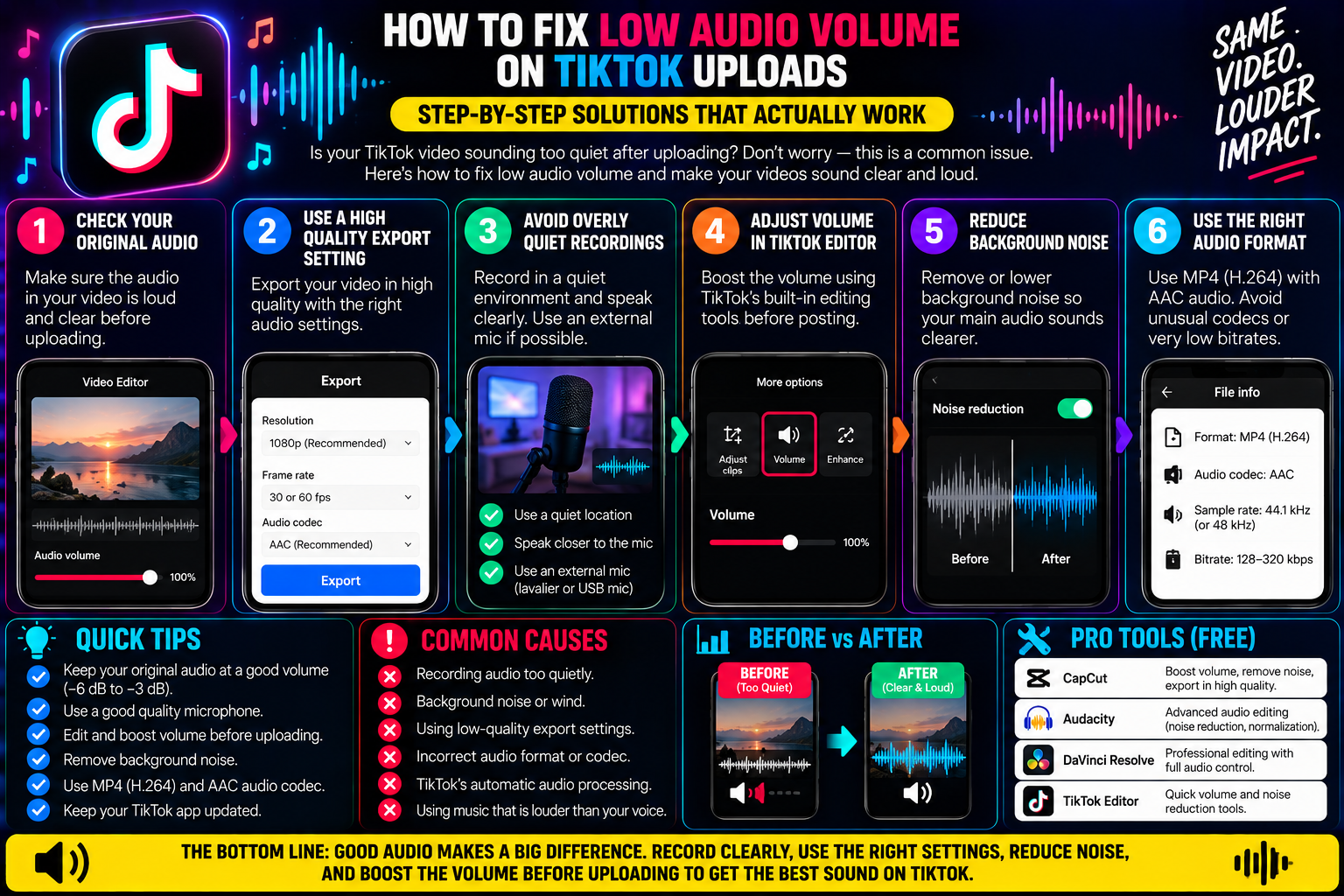
How to Fix Low Audio Volume on TikTok Uploads
You finish editing a video with headphones on, and your mix feels balanced. The music sits neatly beneath your voice, your sound effects hit at the right moments, and nothing sounds harsh.
Then you upload the clip to TikTok.
As you scroll through your feed to watch the live post, you notice an immediate drop in volume. The video playing directly before yours was loud, punchy, and clear.
The moment your clip appears, the sound drops to a near whisper. Viewers have to turn their phone volume all the way up just to hear your spoken sentences.
Worse yet, the moment they swipe to the next video, their ears are blasted by standard-volume audio.
Low upload volume hurts audience retention. Most people scrolling through TikTok are watching in casual environments—on public transit, in shared rooms, or while walking down busy streets.
If your spoken audio cannot cut through everyday background noise, viewers swipe away within three seconds rather than straining to hear your point.
Many creators try to solve this by simply boosting their volume faders to maximum in CapCut or Premiere Pro.
However, pushing the volume slider blindly often backfires: the audio distorts, crackles, and somehow ends up sounding just as quiet after upload.
Fixing this problem requires understanding how TikTok’s loudness normalization engine evaluates audio, why decibel peaks mislead editors, and how to calibrate your mixes so your posts stay loud, punchy, and distortion-free on every device.
The Illusion of Loudness: Decibels vs. LUFS
To understand why your video sounds quiet on TikTok, you first have to understand the difference between peak volume and perceived loudness.
For decades, audio was measured primarily by instantaneous decibel peaks (dBFS—Decibels relative to Full Scale). If a loud clap or a sudden burst of laughter hit the top of the meter (zero decibels), the meter flashed red to warn of clipping distortion.
However, human ears do not judge loudness based on a single millisecond spike. We judge loudness based on sustained sound energy over time across the specific frequencies our ears are sensitive to—mainly speech frequencies between 1,000 Hz and 4,000 Hz.
To measure this accurately, digital streaming platforms rely on a standard called LUFS (Loudness Units relative to Full Scale).
Think of LUFS as the average, sustained perceived weight of your entire audio track from the first second to the last.
Social media platforms like TikTok, YouTube, and Instagram aim to keep playback volume consistent from video to video so users do not have to adjust their phone’s volume buttons with every swipe.
To achieve this, their ingestion servers use automated loudness normalization.
While exact internal thresholds can shift, short-form streaming video platforms generally target an integrated loudness around -14 LUFS with a comfortable true peak ceiling around -1 dBTP.
Why Your Video Gets Turned Down After Upload
If TikTok aims for a standard level of -14 LUFS, why do so many uploaded videos sound quiet?
It usually comes down to one of two common mixing pitfalls:
1. The Single Rogue Peak Trap
Imagine you record a five-minute story. For ninety-eight percent of the video, your voice is quiet and relaxed, sitting at around -24 LUFS.
However, at the three-second mark, you slam a coffee cup onto your desk or shout a punchline, causing that single sound spike to hit 0 dB.
When you upload that file, the platform’s automated systems detect the loud spike.
To prevent that spike from distorting mobile speakers, the algorithm lowers the entire video’s volume to keep the loudest element within safety margins.
The loud coffee cup hit stays controlled, but your quiet voiceover drops even lower, making the rest of your video nearly inaudible.
2. The Dynamic Range Mismatch
In movie theaters, wide dynamic range is great: whispers are quiet, and explosions shake the room.
On a smartphone speaker in the real world, wide dynamic range ruins video consumption.
If there is more than a six-to-eight decibel difference between your quietest words and your loudest points, mobile speakers cannot reproduce the quiet parts clearly.
Viewers will hear half of your words, miss the rest, and move on.
4 Practical Steps to Make Your Audio Punchy and Loud
You do not need an expensive audio engineering degree or complex plugins to fix quiet videos. Applying four simple adjustments to your voice track before exporting will deliver consistent results.
Step 1: Filter Out Inaudible Sub-Bass Rumble
Tiny smartphone speakers physically cannot reproduce frequencies below 80 Hz or 100 Hz.
Yet, your microphone still records low-end energy: room air currents, table bumps, truck rumbles from outside, and breath pops.
Even though you cannot hear this low-end rumble on your phone, it consumes valuable digital headroom, tricking the platform’s normalizer into thinking your video is louder than it actually is.
-
The Fix: Apply a High-Pass Filter (also called a Low-Cut filter) to your vocal track in your editing software, setting the cutoff point around 80 Hz to 100 Hz. This clears out muddy, inaudible rumble and frees up energy for your speech frequencies to shine.
Step 2: Use Dynamic Compression to Even Out Your Voice
A vocal compressor acts like an automated volume hand.
When you speak too loudly, the compressor pulls the volume down smoothly; when you speak softly, it leaves the level alone.
-
In CapCut: Tap your audio clip, scroll to Reduce noise, and adjust clip volume so the waveform looks thick and consistent throughout rather than showing thin lines interrupted by massive spikes.
-
In Premiere Pro, DaVinci Resolve, or Audacity: Add a simple vocal compressor. Aim for a 3:1 or 4:1 compression ratio with a fast attack time. Adjust the threshold so the meter reduces peaks by about 3 dB to 6 dB during your loudest words.
This tightens your dynamic range, ensuring every syllable sits at a uniform volume level.
Step 3: Boost Vocal Clarity in the Mid-Range
The human ear is most attuned to frequencies between 2,000 Hz and 4,000 Hz.
If your voice lacks presence, boosting the master volume slider simply makes background room noise louder.
Instead, use an equalizer (EQ) to add a gentle 2 dB to 3 dB boost around 2.5 kHz to 3.5 kHz. This brings your voice forward in the mix, helping it cut through mobile phone speakers even when the overall volume is modest.
Step 4: Add a Limiter with a -1 dB Ceiling
Before exporting your video, place a limiter on your master audio track.
Set the limiter’s ceiling (output level) to -1.0 dB.
This creates a safety buffer that prevents inter-sample peaks from clipping when TikTok recompresses your audio into lossy AAC format.
With your limiter set to -1.0 dB, you can increase your master gain until your overall track sits comfortably near the -14 LUFS target.
Your audio will sound full, crisp, and loud without distorting.
Checking Your Mix Before You Post
Before publishing, always perform a quick real-world test:
Unplug your headphones, step away from your computer, and play your exported video directly through your phone’s built-in bottom speaker at around fifty percent system volume.
Can you understand every word clearly from arm’s length? Does your background music overpower your voice?
If your speech remains clear at half volume on a phone speaker, your audio is properly balanced and ready for the feed.
Taking a few minutes to clean up sub-bass rumble, tame sudden audio spikes, and control your dynamic range ensures your uploads match the punchy, competitive volume levels of top creators on the For You Page.
Tiksave.org
1 thought on “How to Fix Low Audio Volume on TikTok Uploads”