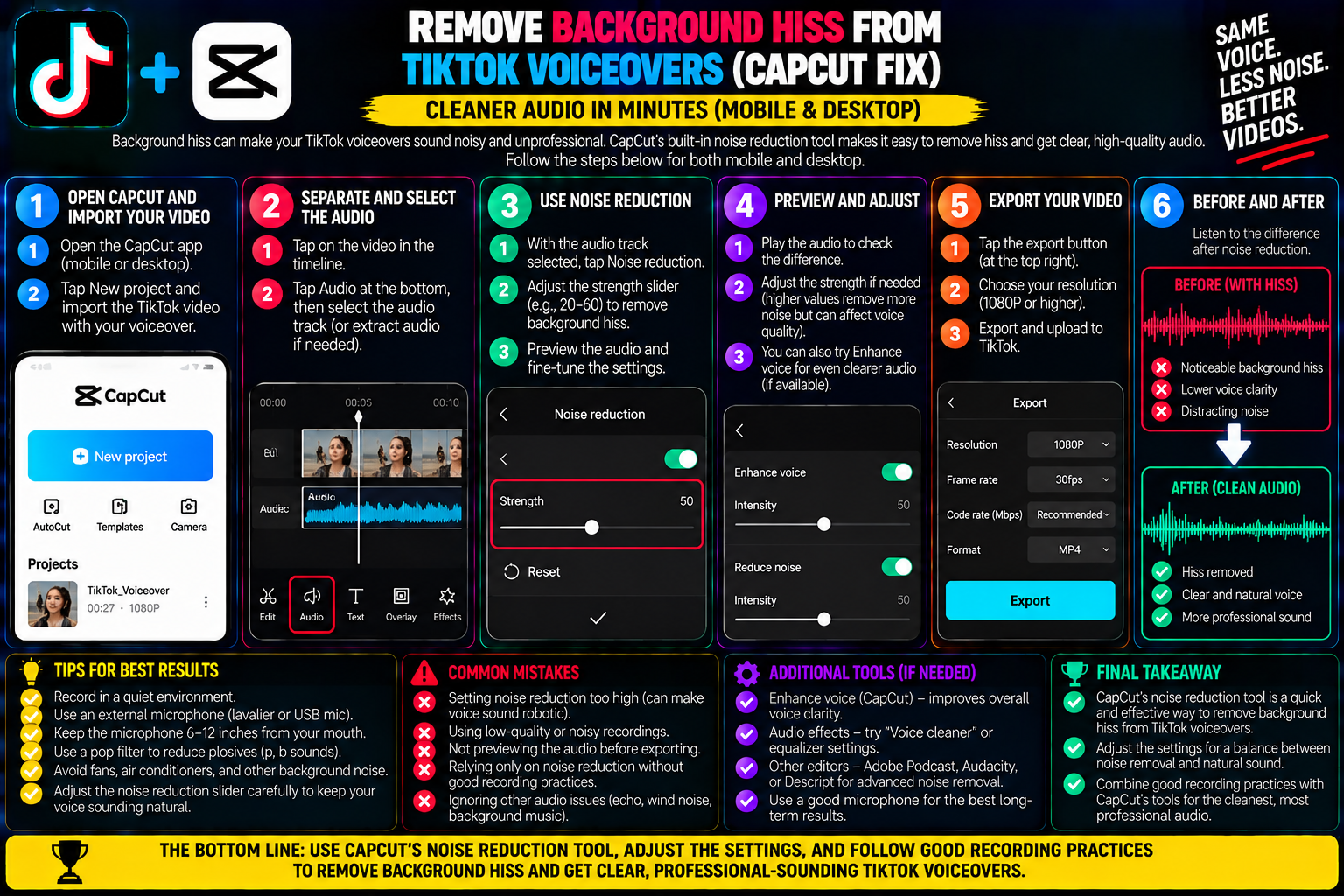
Remove Background Hiss from TikTok Voiceovers (CapCut Fix)
Nothing kills viewer retention faster than poor audio quality. You can shoot your video on a high-end camera, dial in three-point lighting, and structure a compelling hook, but if your voiceover is accompanied by an electric hum, a whirring air conditioner, or a constant bedroom floor hiss, viewers will swipe away within the first three seconds.
Mobile phone microphones are exceptionally sensitive to ambient sound. When you record a voiceover in an untreated room, the microphone’s automated gain control (AGC) boosts quiet sections, amplifying room echoes, computer fans, and internal preamp hiss.
Once your video passes through TikTok’s dynamic audio normalization, those subtle background sounds get pushed straight into the foreground.
The good news: you do not need an acoustically treated studio or a $400 broadcast microphone to get studio-clean sound.
By understanding where background hiss comes from and applying free, browser-based and desktop audio cleanup tools, you can strip away unwanted noise and make your voiceovers sound crisp, professional, and clear.
1. What Causes Background Hiss in Mobile Voiceovers?
To fix audio noise, it helps to understand what your microphone is actually picking up:
+-------------------------------------------------------------+
| ANATOMY OF A NOISY VOICEOVER TRACK                          |
+-------------------------------------------------------------+
| 1. AMBIENT ROOM NOISE (Low-to-Mid Frequencies: 80Hz - 800Hz)|
| Fans, refrigerators, street traffic, HVAC air rumbles       |
+-------------------------------------------------------------+
                             ▲
                             │
+-------------------------------------------------------------+
| 2. ELECTRICAL NOISE FLOOR / PREAMP HISS (Above 4kHz - 8kHz) |
| Tiny mic sensors, cheap analog-to-digital converters        |
+-------------------------------------------------------------+
                             ▲
                             │
+-------------------------------------------------------------+
| 3. IN-APP COMPRESSION SQUASH (TikTok Loudness Processing)   |
| Normalization pumps up silent pauses, making hiss prominent |
+-------------------------------------------------------------+
The Three Common Culprits:
-
The Preamp Noise Floor: Every microphone and audio interface produces a tiny electrical current that creates a soft, steady “sssshhhh” sound in the upper frequencies (typically between 4,000 Hz and 12,000 Hz). Inexpensive smartphone mics and budget lapel mics have high noise floors that become very noticeable when speaking softly.
-
Room Reverberation & Reflections: Bare walls, tile floors, and hard desk surfaces bounce sound waves straight back into your microphone. This causes a hollow “bathroom” acoustic effect that blends with room noise.
-
Dynamic Compression: When you upload audio to TikTok, the app runs an automatic compressor to balance volume levels across the For You Page. During pauses between your sentences, the compressor raises the volume to fill the silence, turning a quiet background hiss into an audible surge.
2. Rule 1: Clean the Room Before Cleaning the Audio
Software filters work best when they only have to clean up small imperfections. If you rely entirely on software to eliminate heavy background noise, your voice can end up sounding watery, robotic, or muffled.
Apply these quick, free physical fixes before you press record:
-
Kill the Room Fans: Turn off ceiling fans, air conditioners, and space heaters for the two minutes it takes to record your voiceover.
-
Break Up Echoes with Soft Materials: Never record facing a bare drywall wall. Sit in front of an open clothing closet, record under a heavy blanket, or place a couple of pillows behind your phone. Fabric absorbs reflected sound waves instantly.
-
Control Your Distance (The 4-to-6 Inch Rule): Position the microphone 4 to 6 inches away from your mouth, angled slightly toward your cheek rather than directly in front of your lips. This captures rich vocal presence while avoiding harsh wind bursts from “p” and “b” plosives.
3. Method 1: The One-Click Solution (CapCut In-App Noise Reduction)
If you edit your TikTok videos directly on your phone using CapCut, you have a built-in noise cleaner that requires zero audio engineering experience.
+-------------------------------------------------------------+
| CAPCUT NOISE REDUCTION PIPELINE                             |
+-------------------------------------------------------------+
| Import video clip / Record native voiceover track           |
+-------------------------------------------------------------+
                             │
                             ▼
| Tap audio track -> Scroll bottom toolbar -> "Reduce noise"  |
+-------------------------------------------------------------+
                             │
                             ▼
| Toggle Switch ON -> Machine-learning algorithm targets hiss |
+-------------------------------------------------------------+
               RESULT: Ambient hum and preamp hiss stripped away
Step-by-Step Instructions:
-
Open your project in CapCut and tap on the audio track (or the video track containing your voice).
-
Scroll through the bottom editing toolbar toward the far right.
-
Tap the icon labeled Reduce noise.
-
Turn the toggle ON and wait two seconds for the app to analyze your waveform.
-
Tap the checkmark to confirm.
CapCut applies an automated dynamic gate and band-stop filter tailored to voice frequencies. It effectively eliminates continuous low-level fan noise and gentle hiss without compromising vocal warmth.
4. Method 2: The Studio AI Standard (Adobe Podcast Enhance Speech)
If your recording has severe background noise—such as street traffic, wind, or noticeable room echo—the most powerful free tool available is Adobe Podcast Enhance Speech.
Adobe’s neural network analyzes your recording, identifies speech patterns, strips away the noisy environment entirely, and re-synthesizes your voice as if you recorded in a professional sound booth.
5. Method 3: Desktop Precision via Audacity (The Classic Noise Gate)
If you edit on a PC or Mac and want full control over your frequencies without introducing AI artifacts, the free, open-source audio editor Audacity offers a clean, reliable workflow.
+-------------------------------------------------------------+
| AUDACITY NOISE REDUCTION (SPECTRAL PROFILING)               |
+-------------------------------------------------------------+
| 1. Highlight 2 seconds of pure room silence (Noise Profile) |
+-------------------------------------------------------------+
                             │
                             ▼
| 2. Effect -> Noise Removal and Repair -> Noise Reduction    |
+-------------------------------------------------------------+
                             │
                             ▼
| 3. Click "Get Noise Profile"                                |
+-------------------------------------------------------------+
                             │
                             ▼
| 4. Select entire track -> Apply: 12dB reduction / 6 sensitivity
+-------------------------------------------------------------+
Detailed Audacity Instructions:
-
Open your audio file inside Audacity.
-
When recording voiceovers, always leave two seconds of complete silence at the start before speaking.
-
Highlight those two seconds of background silence with your cursor.
-
Navigate to Effect Noise Removal and Repair Noise Reduction.
-
Click Get Noise Profile. This teaches the software the exact frequency profile of your room’s hiss.
-
Press
Ctrl + A(Windows) orCmd + A(Mac) to select the entire audio track. -
Return to the Noise Reduction menu and apply these balanced parameters:
-
Noise reduction (dB):
12 -
Sensitivity:
6.00 -
Frequency smoothing (bands):
3
-
-
Click OK. Audacity subtracts the hiss from your entire track while leaving your voice clear and natural.
Summary Comparison of Free Audio Cleaners
| Tool | Platform | Best Suited For | Processing Method | Speed |
| CapCut Built-In | iOS / Android | Quick mobile fixes & simple fan hum | Frequency gate | Instant |
| Adobe Enhance | Web Browser | Heavy room echo, wind & noisy rooms | Generative AI | 15–30 Seconds |
| Audacity | Windows / macOS | Accurate hiss removal with zero vocal loss | Spectral subtraction | 5 Seconds |
Quick Checklist for Clean TikTok Audio
-
Silence the room first: Turn off appliances, close open windows, and step away from humming electronics.
-
reflections: Record facing an open closet, bookshelves, or soft furnishings.
-
Keep your distance consistent: Stay 4 to 6 inches from the mic to keep your vocal levels healthy.
-
Apply gentle filtering: Clean up the file using CapCut, Adobe Enhance, or Audacity, avoiding extreme settings that make your voice sound metallic.
-
Test on phone speakers: Give your final edit a quick listen on basic smartphone speakers before posting to confirm your voice comes through clear and intelligible.
Taking a couple of minutes to clear out background noise transforms standard mobile recordings into studio-quality voiceovers that keep viewers engaged with your content from beginning to end.