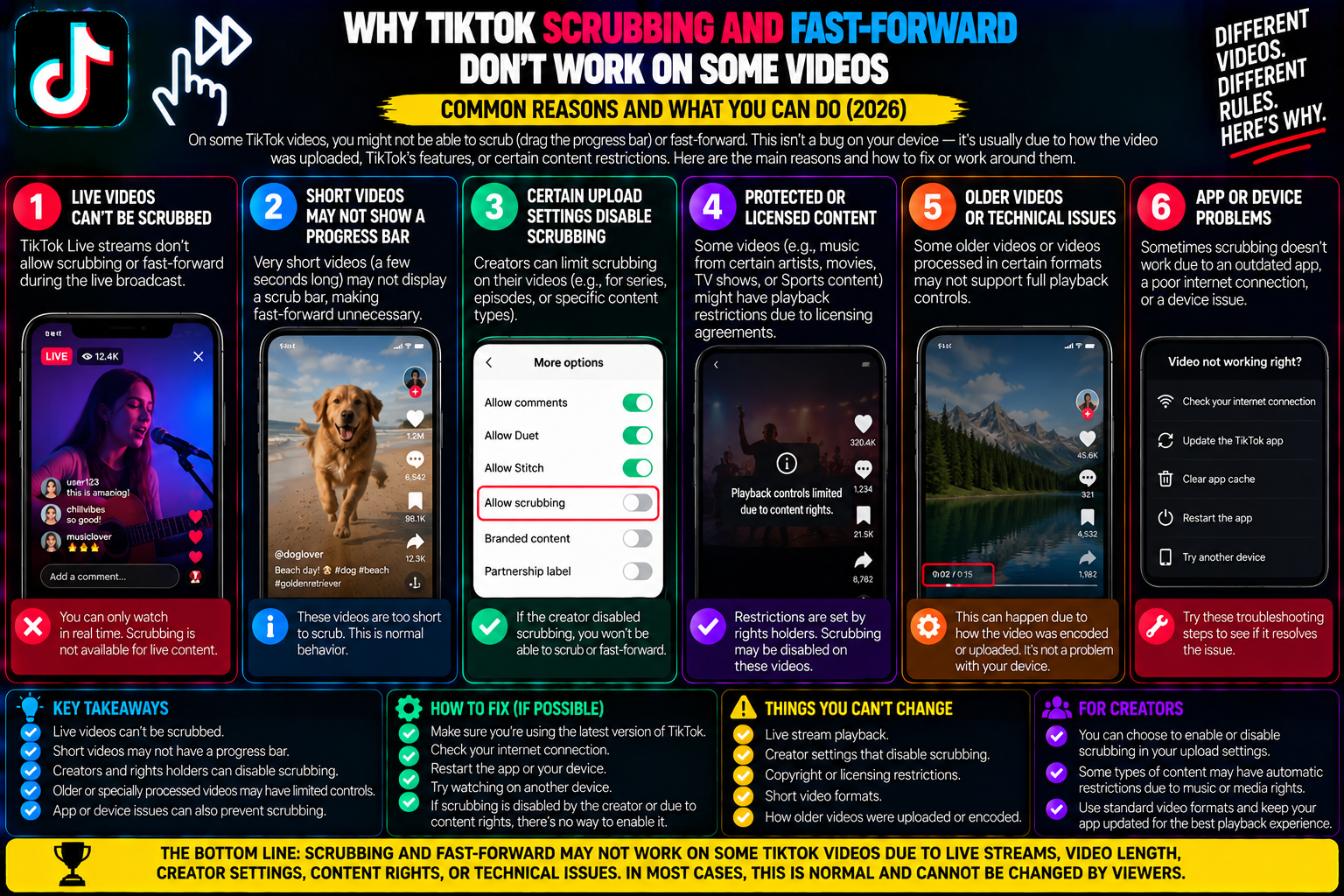
Why TikTok Scrubbing and Fast-Forward Don’t Work on Some Videos
You are three minutes into an eight-minute storytime or detailed recipe tutorial on TikTok. The creator is setting up the punchline or showing the final step, and your screen accidentally gets bumped.
The feed refreshes, or the video resets back to the beginning.
Instinctively, you reach for the bottom of the screen to grab the white dot on the progress bar and drag it forward. But your finger slides across an empty space.
There is no white scrubber dot. The thin line at the bottom does not respond. Long-pressing the screen only brings up the “Not Interested” and “Save” menu instead of the 2x speed toggle. You are forced to either sit through the first three minutes all over again or swipe away in frustration.
This inconsistent playback experience is a common annoyance across the platform. Why do some videos allow smooth scrubbing and 2x fast-forwarding, while others behave like locked television broadcasts?
The absence of video scrubbing is rarely a bug or phone crash. Instead, it is governed by video duration thresholds, content categorization (such as sponsored ads and photo slideshows), app cache memory locks, and intentional algorithmic retention mechanics.
Understanding how TikTok‘s video timeline engine works and knowing the workarounds to bypass locked timelines—puts you back in control of your playback.
1. The Core Reason: The Minimum Duration Threshold
TikTok did not launch with a scrubbing bar. In the platform’s early days of 15-second lip-syncs, videos looped endlessly, and watch-time completion rates were calculated down to the millisecond.
As TikTok expanded video lengths to 3 minutes, 10 minutes, and beyond, forcing viewers to watch without navigation controls caused retention drops.
To balance usability with user retention, TikTok built a length-based logic gate into its media player:
+-------------------------------------------------------------+
| TIKTOK SCRUBBER TIMELINE LOGIC GATES                        |
+-------------------------------------------------------------+
| Video Duration: UNDER 30 SECONDS                            |
| • Scrubber Bar: DISABLED / INVISIBLE                        |
| • Timeline Goal: Maximize full looping & algorithmic score   |
+-------------------------------------------------------------+
                             │
                             ▼
| Video Duration: 30 SECONDS TO 60 SECONDS                    |
| • Scrubber Bar: CONDITIONAL (Thinner line, often non-drag)  |
| • User Action: Requires active tap or long-press hold       |
+-------------------------------------------------------------+
                             │
                             ▼
| Video Duration: OVER 60 SECONDS (1 min - 10+ min)           |
| • Scrubber Bar: FULLY ENABLED WITH TIME CODES               |
| • Interactive Dot: Expands on touch for rapid navigation    |
+-------------------------------------------------------------+
The 30-Second Rule
If a video runs for 28 seconds, TikTok’s player rarely displays an interactive scrub bar. The platform considers 30 seconds brief enough for a viewer to watch from start to finish without needing manual seeking.
Because creators are heavily rewarded when viewers watch a video to completion (100% completion rate), hiding the scrubber on short content prevents viewers from skipping straight to the final payoff.
2. Sponsored Ads and Spark Ads: The Forced View Lock
Have you ever tried to scrub through a video only to find the timeline completely locked, even though the clip is over a minute long?
Look closely at the lower-left corner of the screen above the caption. If you see a small tag that reads “Sponsored”, “Promoted”, or a blue call-to-action button (like “Shop Now” or “Learn More”), you are watching an in-feed advertisement or a creator’s Spark Ad.
+-------------------------------------------------------------+
| ADVERTISING CONTAINER RESTRICTION                           |
+-------------------------------------------------------------+
| Advertiser pays for Impression / Cost-Per-Mille (CPM)       |
+-------------------------------------------------------------+
                             │
                             ▼
| TikTok disables scrubbing bar and 2x fast-forward gestures  |
+-------------------------------------------------------------+
                             │
                             ▼
| Viewer must watch the pitch sequentially without skipping   |
+-------------------------------------------------------------+
Brand advertisers pay TikTok to deliver a sales pitch or product showcase. Allowing viewers to drag the scrubber straight to the final three seconds would undermine the advertiser’s campaign performance.
As a result, TikTok’s ad engine disables manual scrubbing and fast-forward controls on sponsored posts.
3. Photo Mode Slideshows vs. Video Streams
Another common source of confusion is Photo Mode. Many creators post multi-slide photo stories that look like videos because they include music and automatically advance every few seconds.
Because a slideshow is a collection of static image files rather than a continuous video stream, it has no video timeline to scrub through.
-
How to navigate Photo Mode: You cannot scrub or drag a timeline bar. Instead, swipe horizontally (left or right) across the center of the image to move between slides manually.
4. How to Fast-Forward When the Scrubber Is Missing
If a video does not display a visible progress bar, you can still speed up playback using these built-in gestures and shortcuts:
5. Fixing Glitched Scrubber Bars on Mobile
If you are watching a 5-minute video and the progress bar is clearly broken, frozen, or disappearing erratically, the issue is likely a corrupted application cache or UI desynchronization.
Step 1: Clear the App’s Temporary Space
-
Go to your Profile and tap the three-line menu (☰) in the top right.
-
Select Settings and privacy Free up space.
-
Tap Clear next to Cache. This flushes temporary interface buffers without deleting your drafts.
Step 2: Disable and Re-enable “Clear Display” Mode
Occasionally, TikTok’s interface layers get stuck between normal view and full-screen preview.
-
Long-press the middle of the screen.
-
Tap Clear display (which hides all buttons and captions).
-
Tap the screen again to exit Clear Display. This forces the media player to redraw all UI elements, frequently restoring the missing progress bar.
6. The Offline Scrubbing Solution: Direct Media Playback
If you run into an educational tutorial, lecture, or documentary on TikTok that has locked controls, you don’t have to struggle with the in-app player.
+-------------------------------------------------------------+
| OFFLINE SCRUBBING WORKFLOW VIA TIKSAVE                      |
+-------------------------------------------------------------+
| 1. Tap Share on the locked video -> Select "Copy Link"      |
| 2. Open tiksave.org in your browser                         |
| 3. Download the clean, unwatermarked 1080p MP4 file         |
| 4. Open in native Photos/Gallery or VLC Media Player        |
+-------------------------------------------------------------+
               RESULT: Full frame-by-frame scrubbing,
               instant jumping, and variable speed control
By extracting the clean MP4 file using an unwatermarked source utility like Tiksave.org, you move the video into your device’s native media player (such as Apple Photos, Google Photos, or VLC).
From there, you gain full frame-by-frame scrubbing, variable speeds from 0.5x to 3x, and simple offline viewing without interface limits or connection drops.
Summary Reference: Why a Post Won’t Scrub
| Reason | Video Type | Is It Fixable In-App? | Best Workaround |
| Short Duration | Under 30 seconds | No (Working as intended) | Let the clip loop or hold side for 2x speed. |
| Paid Promotion | Sponsored / Spark Ad | No (Advertiser lock) | Tap the screen to check for 2x speed toggle. |
| Photo Mode | Image Slideshow | No (No video track) | Swipe horizontally across slides manually. |
| App Cache Glitch | Standard 60s+ video | Yes | Clear in-app cache or toggle “Clear Display”. |
| Desktop Player | Any video length | Yes | Use browser seek bar or keyboard arrows. |