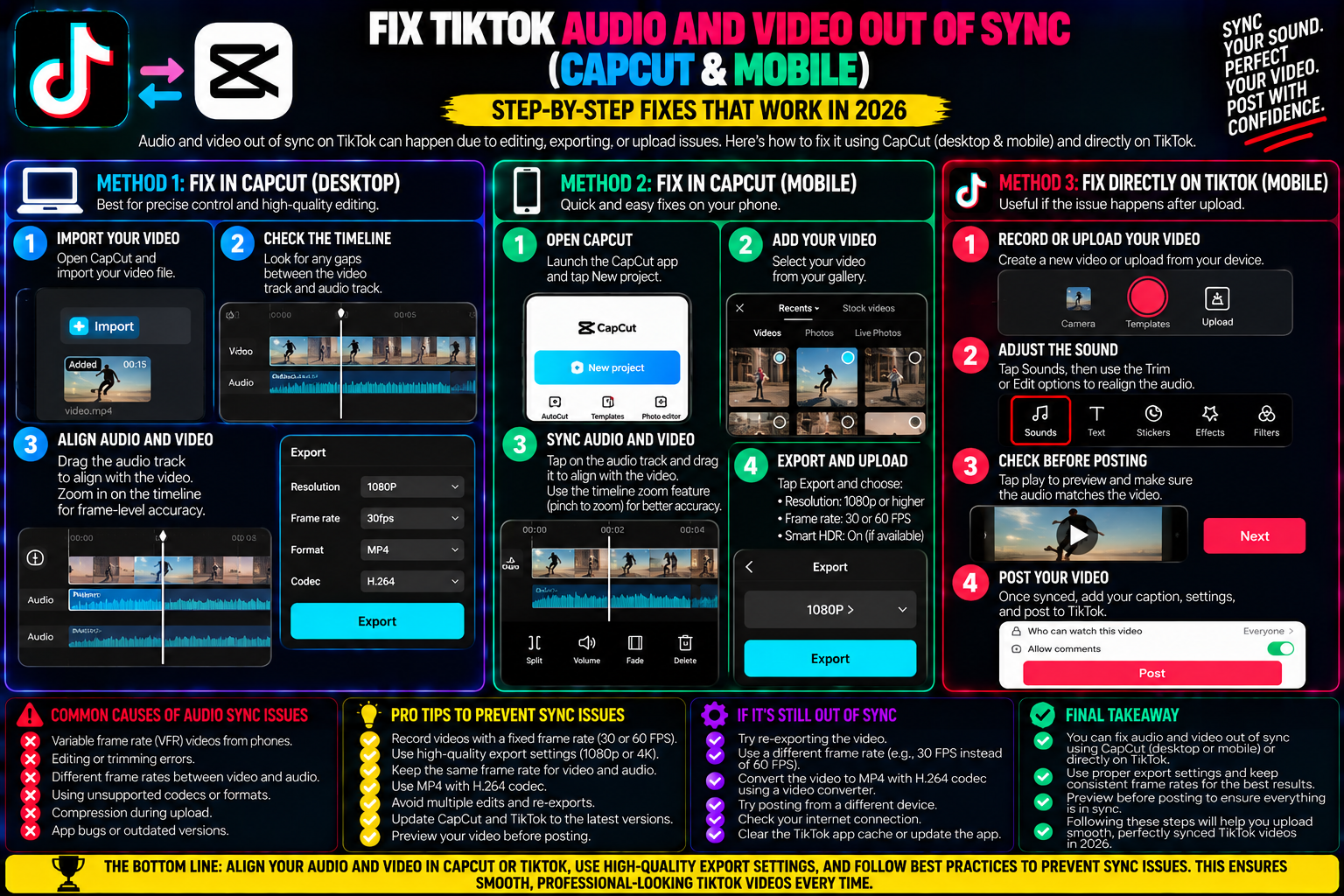
Fix TikTok Audio and Video Out of Sync (CapCut & Mobile)
You spend forty minutes trimming clips, timing visual transitions to a punchy beat, and lining up your voiceover words. The playback inside your video editor looks and sounds seamless.
Then, you post the video to TikTok. Fix TikTok audio and video out of sync.
Within minutes, the comments start rolling in: “Your voice doesn’t match your mouth,” or “The audio is a full second behind.” You watch the clip back on your own feed, and sure enough, your lips move well before the sound plays.
Audio-video desynchronization is one of the most frustrating glitches on short-form platforms. It distracts viewers, drops your average watch time, and can ruin an otherwise strong video.
The good news is that your account is not broken, and you do not need to re-record your entire project. Audio drift happens because of how modern smartphone cameras, video editing apps, and TikTok’s ingestion servers process frame rates.
Understanding what causes audio sync lag—and applying simple adjustments in CapCut, mobile settings, or desktop editors—will ensure your voice and music stay aligned.
Why Audio Drifts Out of Sync on TikTok
To fix audio lag, it helps to understand what happens when a video file moves from your phone’s camera roll to TikTok’s servers.
When you export a video from an editing app, the file contains two separate streams: a video track (visual frames) and an audio track (sound waves). To keep them playing together, media players rely on timestamp markers.
+-------------------------------------------------------------+
| HOW AUDIO DESYNCHRONIZATION HAPPENS                         |
+-------------------------------------------------------------+
| 1. Phone Camera records in Variable Frame Rate (VFR)        |
|    (e.g., shifts between 23 fps in dark areas, 59 in light) |
+-------------------------------------------------------------+
                             │
                             ▼
| 2. Mobile Editor exports with loose timecode markers        |
+-------------------------------------------------------------+
                             │
                             ▼
| 3. TikTok Server recompresses file into Constant Frame Rate |
|    (Audio timestamps drift 200ms - 1000ms out of sync)      |
+-------------------------------------------------------------+
The Primary Cause: Variable Frame Rate (VFR)
Most smartphones do not record at a strict, locked 30 or 60 frames per second. To save battery and adjust for lighting changes, your phone’s native camera automatically speeds up or slows down its frame capture rate.
While your native photo gallery can handle dynamic frame rates, social media encoding servers expect a strict Constant Frame Rate (CFR). When TikTok’s system forces a variable-rate video into a fixed 30 fps container, the audio track gradually drifts away from the visual track.
Secondary Causes of Desynchronization
-
Bluetooth Headphone Latency: If you recorded your voiceover or cut your clips while wearing wireless earbuds, you were editing with a 150ms to 300ms transmission delay. Your timeline looked synced to your ears, but the raw file is physically misaligned.
-
In-App Draft Cache Glitches: Storing dozens of active projects in your local drafts folder can slow down real-time audio playback during editing.
-
TikTok App Memory Leaks: If the TikTok application has been running in the background for hours, its internal buffer can introduce playback lag that makes published videos appear out of sync on your screen, even when they play fine for others.
3 Quick Triage Checks Before Re-Editing
Before you delete your post or dive back into your editor, run these quick checks to confirm whether the problem is on your end or baked into the video file:
-
Test with Wired Audio or Phone Speakers: Disconnect any active Bluetooth headphones or car audio connections. Bluetooth lag is the source of perceived sync issues in nearly half of all reports.
-
Check the Video on a Second Device: Open your TikTok profile on a laptop browser or a friend’s phone. If the video plays in sync there, the issue is simply local cache lag on your primary phone.
-
Restart the TikTok App: Swipe up to close TikTok completely from your app switcher, relaunch it, and watch the video again.
If the audio is still noticeably behind or ahead, the timing error is embedded in the exported file. Here is how to fix it cleanly.
Step-by-Step Fixes in CapCut and Mobile Editors
Because millions of creators assemble videos in CapCut before posting, addressing timeline settings inside the app is the fastest way to solve desync issues.
1. Lock Your Timeline Frame Rate
When starting a project, ensure your project canvas is locked to a standard rate before you make your first cut:
-
Open your project in CapCut.
-
Look at the top right corner next to the blue Export arrow. You will see a resolution toggle (e.g.,
1080P). -
Tap that resolution indicator to open the Export Settings drawer.
-
Ensure the Frame Rate slider is set firmly to 30 or 60.
-
Avoid leaving projects on dynamic or mismatched settings.
+-------------------------------------------------------------+
| OPTIMAL CAPCUT EXPORT SETTINGS                              |
+-------------------------------------------------------------+
| • Resolution: 1080p                                         |
| • Frame Rate: 30 fps (Locked)                               |
| • Codec: H.264                                              |
| • Audio: Stereo AAC, 48 kHz                                 |
+-------------------------------------------------------------+
2. Detach and Lock the Audio Track
If you imported a pre-recorded video clip and added music or voice notes, the audio track may drift as you split and trim clips.
-
Tap the video clip on your timeline.
-
Scroll through the bottom toolbar and tap Extract Audio.
-
This separates the voice or sound into its own independent track beneath the video.
-
Now, if you cut, speed up, or slow down a video section, the audio track stays anchored to its exact timecode rather than stretching or compressing unpredictably.
The HandBrake Desktop Fix: Converting VFR to CFR
If you edit on a PC or Mac and frequently experience audio lag on uploaded files, run the source footage through HandBrake—a free, open-source video converter. HandBrake forces variable smartphone footage into a strict Constant Frame Rate.
-
Download and open HandBrake on your computer.
-
Drag your problematic video file into the window.
-
Click on the Video tab.
-
Under the Framerate (FPS) settings, select Constant Framerate (do not select Peak Framerate).
-
Set the framerate to 30.
-
Choose a destination folder at the bottom and click Start Encode.
Once re-encoded, the audio and video tracks are locked together. You can upload the resulting file to TikTok via your web browser ([tiktok.com/upload](https://tiktok.com/upload)) with zero timing drift.
Best Practices to Prevent Audio Lag on Future Posts
-
Record with Native Phone Camera Apps: Capture your raw footage using your phone’s default camera app rather than recording inside social media apps. Default camera apps provide cleaner sensor readouts and more stable file wrappers.
-
Keep Edits Under 1080p 60fps: While 4K capture looks great in your camera roll, uploading raw 4K to TikTok triggers aggressive server compression that increases the chance of audio-frame drift. Always export your final social cuts in clean 1080p.
-
Clear Your In-App Cache Regularly: Go to Profile $\rightarrow$ Settings and privacy $\rightarrow$ Free up space and clear your cache every couple of weeks to keep the playback engine responsive.
Fixing out-of-sync audio comes down to delivering files with consistent frame rates and clean timecode markers. Taking thirty seconds to verify your export frame rates and separate your audio tracks will ensure your videos look polished and sound clear every time you hit publish.