How to Save TikTok Photo Slideshows and Carousels
TikTok is widely recognized as a vertical video platform, but one of its fastest-growing post formats is Photo Mode. From multi-slide photo dumps and infographic explainers to serialized memes and storybook-style narratives, photo carousels drive massive engagement across the app.
While casual viewers simply swipe through these photo decks horizontally to an upbeat background track, saving them for personal inspiration, creative moodboards, or offline archiving poses a unique technical challenge.
When you tap “Save Video” on a carousel post natively, TikTok frequently compiles the series of static photos into a single, rolling 15-second MP4 video file—complete with hardcoded watermarks and fast transitions. If you just wanted the clean, original high-resolution JPEGs to study a design or print an image, a squashed video file is useless.
Extracting individual images from a TikTok carousel requires understanding how Photo Mode posts are packaged and using dedicated extraction pipelines.
The Technical Structure: Photo Mode vs. Traditional Video
To download slideshows effectively, it is critical to understand the difference between how TikTok handles video posts versus photo collections:
-
Standard Video Post (
/video/): Contains a unified H.264/HEVC video container with embedded audio streams. -
Photo Mode Post (
/photo/): Composed of an array of distinct, static image files (typically WebP or JPEG) hosted individually on TikTok’s Content Delivery Network (CDN). These images are paired on the client side with a synchronized standalone audio stream (.mp3or.m4a). -
The URL Flag: Notice the web address when viewing a carousel on desktop or in a browser. Instead of
[tiktok.com/@user/video/12345](https://tiktok.com/@user/video/12345)..., the URL structure often changes to[tiktok.com/@user/photo/12345](https://tiktok.com/@user/photo/12345).... Standard single-video scrapers fail when fed a photo URL because they search for an.mp4container that does not exist in the root metadata.
Because of this structure, you have two options when saving: download each photo as an independent, full-resolution still image, or export the entire set as a synchronized looping video.
Method 1: Batch-Extracting Individual HD Photos via Web Extractor (Zero Watermarks)
The most efficient way to grab every slide from a TikTok carousel in its original crisp resolution—without the TikTok watermark burned onto the graphics—is through a specialized browser extractor like tiksave.org.
- Copy the Carousel Post Link
-
Launch TikTok and swipe to the photo slideshow you want to save.
-
Tap the Share arrow on the bottom right.
-
Select Copy Link from the share menu.
- Parse the Photo Array
-
Open your device’s web browser (Safari on iPhone, Chrome on Android or desktop).
-
Navigate to tiksave.org.
-
Paste the URL into the input field and hit Download.
-
Rather than presenting a single video download button, the engine recognizes the
/photo/endpoint and unpacks the carousel array.
Saving Your Files
-
Individual Slide Download: Tap the download button under any individual photo to save specific slides directly.
-
Batch ZIP Archive: Choose Download All Photos (ZIP) to pull the entire collection in a single compressed folder.
-
On iOS: Safari downloads the ZIP file straight into your
Filesapp underDownloads. Tap the ZIP archive once to uncompress it into a folder of full-res JPEGs, then select them and tap Save Images to transfer them to your Photos library. -
On Android: The images save automatically into your device’s
Downloadfolder, instantly viewable within Google Photos or Samsung Gallery.
Method 2: The In-App “Save All Images” Native Function
In recent updates, TikTok added a direct way to save photos natively from certain carousel posts, provided the creator has not locked down their content settings.
How to Save Within the App:
-
Open the photo post inside TikTok.
-
Long-press on the center of the photo, or tap the Share arrow.
-
Look for the Save Image or Save All Images icon in the bottom utility row.
-
If “Save All Images” is selected, TikTok downloads the collection directly into your camera roll.
The Drawbacks of Native Saving:
-
Watermark Overlays: TikTok stamps its logo and the creator’s username across the bottom or top corner of each downloaded image.
-
Image Compression: The in-app download frequently applies compression algorithms, converting high-resolution uploads down to screen-view bitrates.
-
Disabled Downloads: If the creator toggled off downloads, this button disappears entirely, forcing you to use web extractors or screen captures.
Method 3: Saving the Slideshow as a Synchronized MP4 Video
Sometimes you don’t want isolated images—you want the dynamic experience of the slideshow running in sequence with the music track intact, ready to share on Instagram Stories or WhatsApp statuses.
Option A: The In-App Video Export
-
On the carousel post, tap Share.
-
Tap Save as Video.
-
TikTok automatically renders the slides into an animated video sequence with the sound timed to each slide and drops the rendered MP4 into your camera roll.
Option B: High-Def Video Rendering via Web Downloader
If you want the video version but don’t want the shifting watermark obscuring the photos:
-
Copy the carousel link.
-
Paste it into an online extractor supporting slideshow-to-video conversion (such as tiksave.org).
-
Select Download as Rendered Video (MP4).
-
The server stitches the clean images and original soundtrack together into a 1080p vertical video without any branding stamps.
Comparison: Extraction Methods for TikTok Carousels
| Method | Resolution Quality | Watermark Present? | Audio Included? | File Output |
| Web Extractor (tiksave.org) | Original Upload (Up to 4K) | No (Completely Clean) | Optional MP3 Separately | Standalone JPG/PNG or ZIP |
| Native In-App Photo Save | Compressed Display Quality | Yes (Logo & Username) | No | Individual Images in Gallery |
| Native “Save as Video” | 720p – 1080p | Yes (Bouncing Watermark) | Yes (Synced Audio) | Merged MP4 Video |
| Manual Screenshots | Screen Resolution Only | Yes (UI clutter unless cropped) | No | Screen Capture PNG |
Repurposing Slideshow Images: Best Practices
If you are downloading photo carousels to repurpose content or organize design research:
-
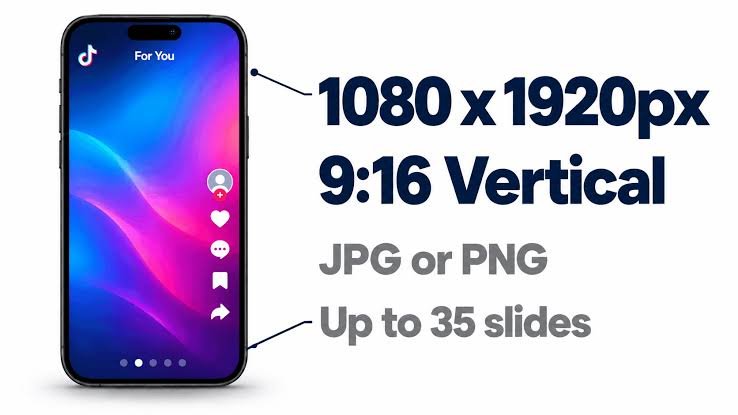
Check Aspect Ratios: TikTok carousels support both standard 9:16 vertical photos (1080×1920) and 1:1 square crops. Ensure your destination platform (like Pinterest Idea Pins or Instagram Carousels) matches the framing.
-
Preserve Color Profiles: Downloading raw files via browser prevents the sRGB color degradation that often occurs when taking screenshots on devices with True Tone or Night Shift active.
-
Credit Original Creators: When archiving educational slides or creative photography, maintain a record of the creator’s handle for attribution.
Frequently Asked Questions
Why can’t I see the “Save as Video” option on some slideshows?
If a creator used certain licensed commercial music tracks or applied interactive question/poll stickers to their slides, TikTok’s rendering engine disables automated video conversion to prevent licensing violations. In this scenario, downloading individual photos via a web extractor is the only viable path.
Can I download the background music from a photo slideshow?
Yes. Photo carousels utilize standard TikTok audio libraries. You can tap the spinning sound disc on the post to copy the sound link, or select “Download MP3” on a web downloader to fetch the audio track independently.
What is the maximum number of photos a TikTok slideshow can contain?
TikTok allows creators to upload carousels containing up to 35 photos in a single post. Web extraction tools will index and display all 35 images sequentially, allowing you to download them individually or as a single batch archive.