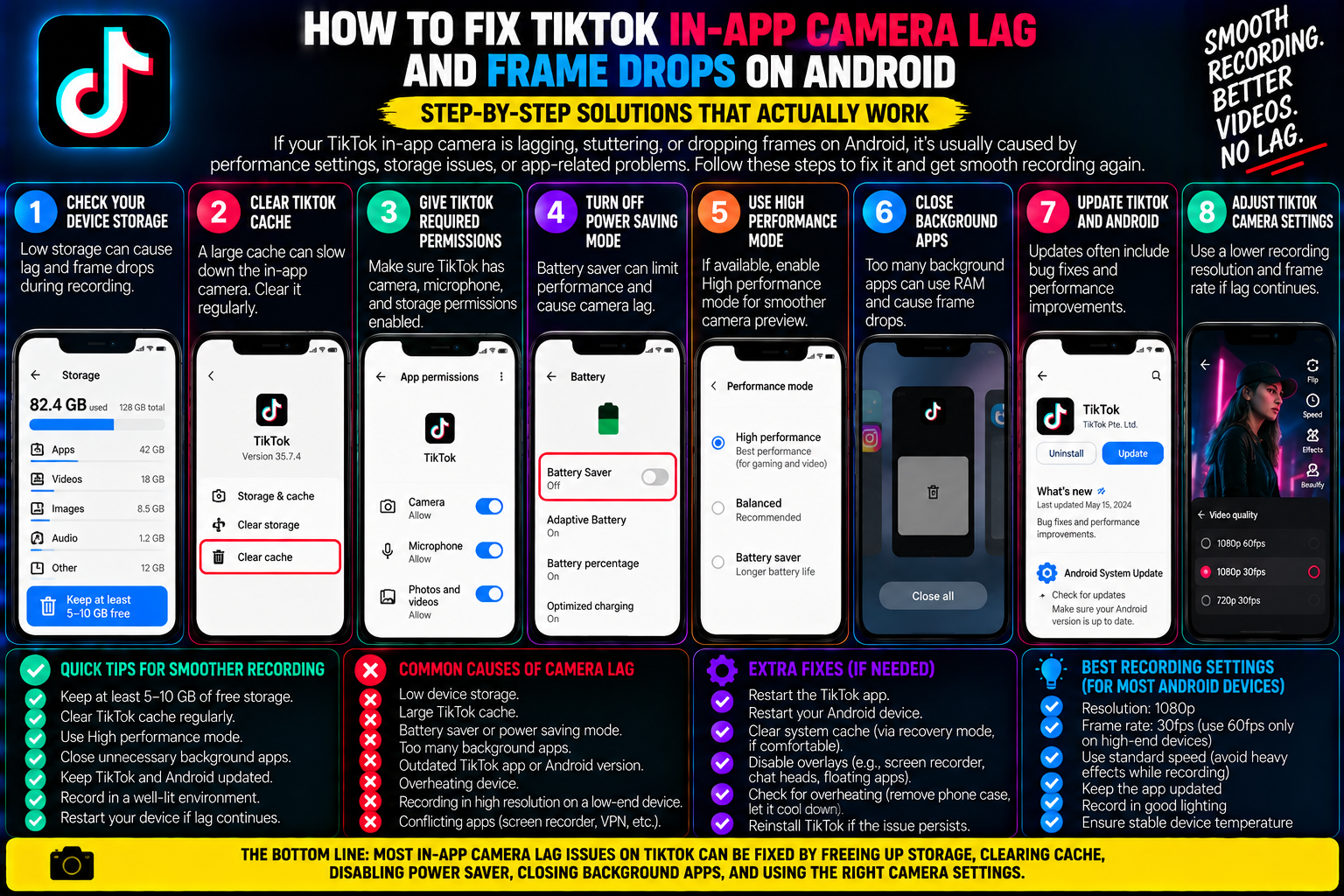
You tap the record button inside the TikTok app on your Android phone, ready to film a quick reaction, lip-sync, or tutorial.
Right away, the viewfinder feels sluggish.
As you pan across your room, the camera stutters, drops frames, and tears across high-motion areas. If you tap the red button to record anyway, the final video comes out choppy, with your facial expressions stuttering at fifteen frames per second while the audio runs ahead in real time.
Yet, when you exit TikTok and open your phone’s default Camera app, the preview is smooth, responsive, and sharp.
This disparity leads many creators to believe their Android hardware is defective. In reality, modern Android smartphones feature advanced camera sensors and fast processors.
The issue is rarely your camera hardware.
Instead, it stems from Android API fragmentation, CameraX bridge limitations, background power management throttles, and real-time AR filter rendering bottlenecks.
Understanding how TikTok hooks into Android’s camera subsystem and configuring system tweaks, app settings, and external recording workflows will eliminate camera stutter and deliver smooth video every time you shoot.
Why Android Cameras Stutter Inside Social Apps
To understand why the in-app camera lags on Android while performing seamlessly on iOS, you have to look at the architecture of mobile operating systems.
Apple manufactures a closed lineup of devices each year, allowing TikTok’s developers to tailor software directly to a handful of specific iPhone sensors.
Android, by contrast, operates across thousands of phone models built by Samsung, Google, Xiaomi, Motorola, and OnePlus, all featuring different sensor arrays and system chips.
To manage this diversity, Google created the Camera2 API and CameraX library.
When you open TikTok’s in-app camera:
-
The app requests a basic camera stream rather than tapping directly into the dedicated image signal processor (ISP).
-
The phone must handle the live video feed, real-time beauty skin-smoothing, lighting adjustments, audio synchronization, and visual effects simultaneously on a single rendering thread.
-
If the hardware does not expose zero-shutter-lag pipeline buffers to third-party software, the in-app viewfinder drops frames to keep up.
This processing load causes the viewfinder to lag, introducing the stutter you see on screen.
Quick In-App Adjustments to Restore Smooth Playback
Before diving into operating system settings, adjust these options inside TikTok to relieve pressure on the live camera renderer.
Turn Off Real-Time “Beauty” Filters
When you launch the in-app camera, TikTok often enables its default Beauty Mode (skin smoothing, eye widening, and facial contouring).
These computer vision algorithms process every frame in real time.
Tap the Beauty wand icon on the right-hand tool column to turn it completely off. Disabling real-time facial tracking instantly frees up graphic processing power and smooths out the viewfinder.
Remove Complex AR Face Effects While Filming
3D tracking effects, green-screen overlays, and animated stickers consume significant mobile GPU power.
If your phone’s processor begins to heat up, the system throttles its clock speed to prevent overheating, which directly causes frame drops.
Record your base footage without live filters, and apply stickers, text, or color grades on the preview screen after the recording is captured.
Clear In-App Media Cache
Over time, cached video drafts, downloaded sound snippets, and thumbnail buffers clog the app’s temporary memory.
-
Go to your Profile and tap the three-line menu (☰).
-
Select Settings and privacy $\rightarrow$ Free up space.
-
Tap Clear next to Cache.
-
Force-close TikTok from your app switcher and reopen it.
Essential Android System Settings to Prevent Camera Throttling
Several system-level battery optimizations intended to save power can inadvertently choke camera performance in third-party apps.
Disable Battery Saver Mode
When Battery Saver or Power Saving Mode is active, your phone limits processor speeds, restricts background rendering, and frequently cuts the display refresh rate down to 60 Hz or lower.
Swipe down from the top of your screen to open your Quick Settings shade and confirm that Battery Saver is disabled before filming.
Remove Battery Optimization for TikTok
Android’s adaptive battery management actively limits hardware resources for apps it suspects are using too much power:
-
Open your phone’s Settings and tap Apps.
-
Find and select TikTok.
-
Tap on Battery (or App battery usage).
-
Change the setting from Optimized to Unrestricted.
This prevents your operating system from throttling CPU cycles while the camera viewfinder is running.
Match Your Display Refresh Rate
Many modern Android phones feature high refresh displays running at 90 Hz or 120 Hz.
However, TikTok’s camera stream operates on a fixed 30 frames per second standard. When a 120 Hz display tries to interpolate a 30 fps viewfinder stream without variable frame rate smoothing, the mismatch creates visible micro-stutter.
If your phone allows it under Settings $\rightarrow$ Display $\rightarrow$ Motion Smoothness, testing a standard 60 Hz refresh rate can sometimes eliminate viewfinder tearing.
The Creator Standard: Use Your Native Stock Camera
Every professional Android content creator follows one cardinal rule: never record final video using the in-app social media camera.
Your phone’s native camera app was built and calibrated specifically by the manufacturer’s engineering team for your exact sensor hardware.
When you film with the stock Camera app:
-
You get complete access to hardware optical image stabilization (OIS).
-
Multi-frame HDR image processing delivers balanced shadows and highlights.
-
The camera locks onto clean 1080p at 30 fps or 60 fps without dropped frames.
-
The phone stays cooler because it is not simultaneously running network syncs and platform ad trackers.
The Recommended Native Recording Workflow:
-
Open your default Camera app and switch to Video mode.
-
Set your resolution to 1080p at 30 fps or 60 fps (avoid 4K, as TikTok recompresses 4K files heavily, which can cause playback stutter).
-
Record your clip in natural lighting.
-
Open TikTok, tap the + create button, and tap the Upload square to select your pre-recorded video.
-
Tap Add sound to search for your desired audio track, balance the volume sliders, and post.
By decoupling video capture from social media software, you ensure your footage remains sharp and fluid.
Device-Specific Fixes for Samsung and Google Pixel
If you use a flagship phone from Samsung or Google, take advantage of built-in optimizations designed to bridge third-party camera gaps.
For Samsung Galaxy Users (Camera Assistant)
Samsung partners with major platforms through its CameraX extensions. If you own a Galaxy S or Z series device:
-
Open the Galaxy Store and install the Camera Assistant app (part of Samsung Good Lock).
-
Open Camera Assistant and ensure Auto HDR and Capture Speed are optimized for quick capture.
-
When using TikTok, check the in-app camera menu for a yellow star or night mode icon—this confirms that Samsung’s native post-processing pipeline is communicating directly with TikTok.
For Google Pixel Users (CameraX Integration)
Google Pixel phones include direct Camera2 and CameraX pipeline integrations built into the Tensor chipset.
Ensure your device is updated to the latest Android security patch under Settings $\rightarrow$ System $\rightarrow$ Software update.
Google regularly pushes camera driver optimizations that smooth out third-party viewfinder performance across social apps.
Quick Troubleshooting Checklist for Android Camera Lag
-
Disable Battery Saver: Confirm your phone is running at full system performance.
-
Turn off Beauty filters: Free up GPU resources by disabling real-time face tracking.
-
Wipe temporary cache: Go to TikTok’s settings and clear temporary cache files.
-
Film in bright light: Low-light environments force the camera sensor to slow its shutter speed to gather light, which introduces natural motion blur and perceived lag.
-
Record outside the app: Capture your footage using your stock Camera app and upload the finished MP4 for the smoothest visual quality.
Taking control of your device settings and shooting through your stock camera eliminates in-app stutter, ensuring your Android videos look crisp, fluid, and professional on every feed.
For a step-by-step visual demonstration of resolving camera stutter on your device, check out this TikTok Camera Lag Troubleshooting Guide. This walkthrough illustrates specific system settings and cache management routines to quickly clear in-app camera frame drops.