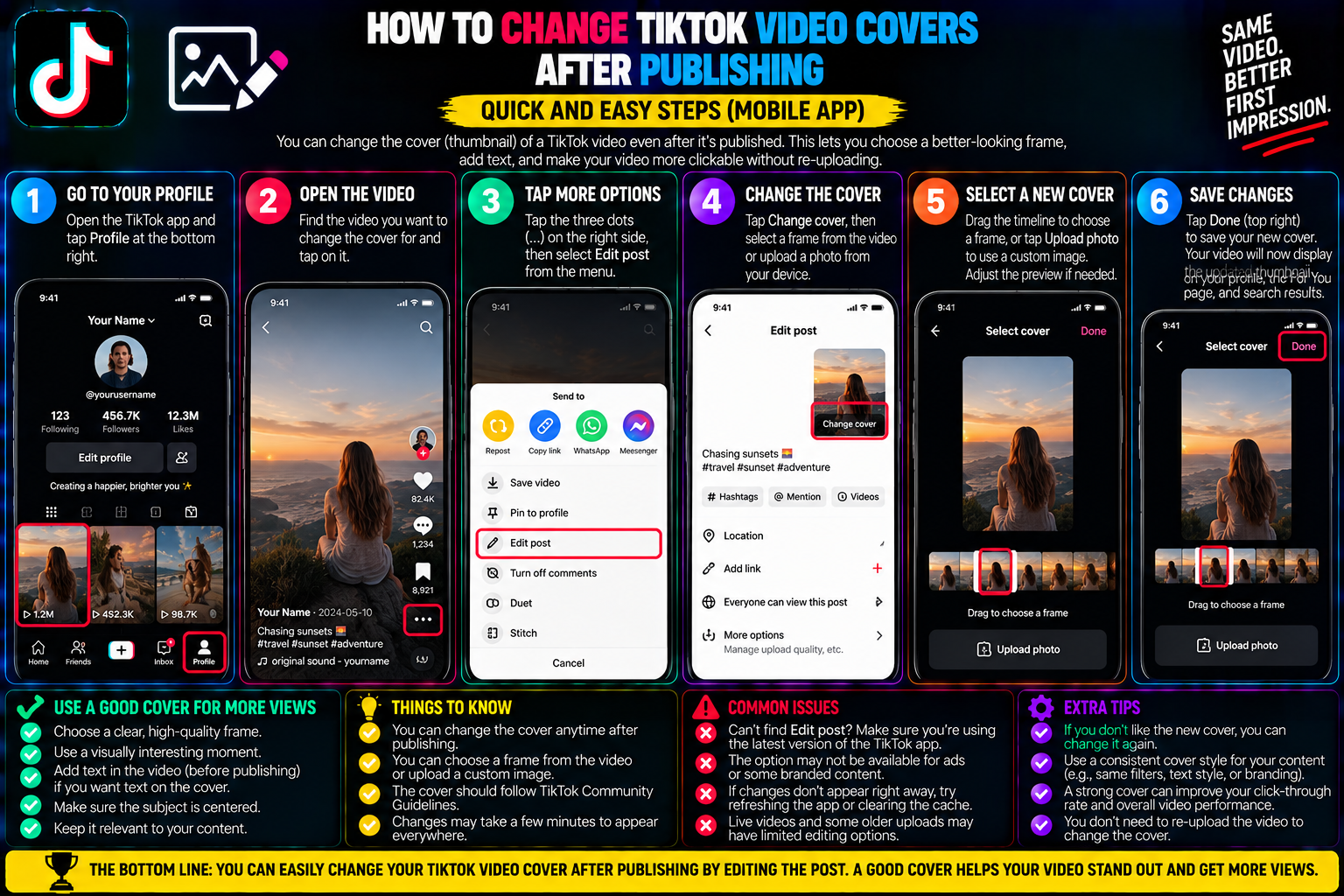
How to Change TikTok Video Covers After Publishing
You spend hours filming, editing, and color-grading a video. You write an engaging caption, hit publish, and watch the views climb.
Then, you navigate to your profile grid to see how the new clip fits into your aesthetic.
Your stomach drops. Instead of a clear, engaging still frame with your bold title card, TikTok selected an awkward freeze-frame: mid-blink, mouth half-open, with zero text context.
Your profile grid looks cluttered, and visitors browsing your profile have no visual cue indicating what the video is about.
Naturally, you open the settings menu looking for an “Edit Cover” button.
This leads to one of the most debated topics among social media creators: Can you actually change your TikTok video thumbnail after posting?
Online tutorials present conflicting answers. Some claim you can swap covers anytime via developer tricks, while others insist the only option is deleting the post and losing all accumulated views.
Understanding TikTok’s cover-selection architecture, testing the rollouts of the native “Edit Post” feature, debunking common myths, and using proven workarounds will help you protect your profile aesthetic without sacrificing your analytics.
1. The Cover Architecture: Why Changing Thumbnails Is Difficult
To understand why TikTok handles thumbnail covers differently than platforms like YouTube, look at how the platform indexes media assets:
+-------------------------------------------------------------+
| YOUTUBE THUMBNAIL ARCHITECTURE                              |
| Decoupled Assets: Video Stream (.mp4) + Static Image (.jpg) |
| Cover can be swapped in Creator Studio at any time          |
+-------------------------------------------------------------+
                             VS.
+-------------------------------------------------------------+
| TIKTOK DYNAMIC COVER PIPELINE                               |
| • Animated 2-Second WebP/MP4 preview extracted from stream  |
| • Embedded text template rendered directly into frame slice |
| • Static still frame indexed across global edge CDN nodes   |
| • Feed Algorithm ties initial CTR directly to cover hook    |
+-------------------------------------------------------------+
The Three Media Layers of a TikTok Cover:
-
The Static Frame: The fixed image displayed on your profile grid and search result listings.
-
The Dynamic Animated Preview: When a user hovers over or scrolls past your profile grid, TikTok loops a short 1- to 2-second snippet of the video.
-
The Text Overlay Template: Unlike YouTube, where you upload a flat, pre-designed graphic, TikTok uses an in-app text engine that renders dynamic titles directly over the video frames.
When a video goes live, ByteDance’s Content Delivery Network (CDN) caches these visual assets across thousands of edge servers.
Historically, changing that thumbnail required flushing global cache distributions, leading TikTok to lock covers upon publishing.
2. The Native “Edit Post” Feature: Availability & Limitations
TikTok has gradually rolled out an in-app “Edit Post” feature to select regions and account tiers.
However, this feature comes with strict parameters:
+-------------------------------------------------------------+
| THE NATIVE "EDIT POST" TIMELINE WINDOW                      |
+-------------------------------------------------------------+
| 0 to 7 Days Post-Publishing:                                |
| • Caption edits: ALLOWED                                    |
| • Cover / Thumbnail changes: CONDITIONAL (Region-dependent) |
+-------------------------------------------------------------+
                             │
                             ▼
| After 7 Days:                                               |
| • All metadata, covers, and captions permanently locked     |
+-------------------------------------------------------------+
How to Check If Your Account Has the “Edit Cover” Feature:
-
Go to your Profile and open the target video.
-
Tap the three dots (…) on the lower-right side of the screen.
-
Scroll through the bottom action row and look for Edit post.
-
If available, tap Edit post. Look at the top thumbnail preview.
-
If an “Edit cover” or pencil icon appears over the image, you can drag the scrubber to choose a new video frame, add title text templates, and tap Save.
Note: If the “Edit cover” button does not appear—or if your video was published more than 7 days ago—your account remains under the traditional locked-cover architecture. You must use the workarounds detailed below.
3. Debunking Popular TikTok Thumbnail Myths
Because creators are eager to fix bad thumbnails, bad advice circulates across forums and social channels:
Myth 1: “Desktop TikTok Studio lets you upload custom thumbnails anytime.”
-
The Reality: While the desktop web uploader (
[tiktok.com/upload](https://tiktok.com/upload)) allows you to select a specific frame or upload a custom image during the initial upload phase, it does not permit cover modifications once the post is published.
Myth 2: “Clearing your app cache resets the thumbnail to the first frame.”
-
The Reality: Clearing your cache only flushes local temporary files from your phone’s storage. It has zero impact on server-side cover designations.
Myth 3: “Support tickets can retroactively swap your thumbnail.”
-
The Reality: TikTok’s automated support queues will not manually process thumbnail swaps for creator accounts. Submitting tickets for cover adjustments leads to automated canned responses.
4. Workaround A: The “Save, Reposition & Repost” Strategy
If your video was posted within the last 24 to 48 hours and has fewer than 1,000 views, the most effective fix is reposting with a corrected cover.
However, downloading your video using TikTok’s standard save button stamps an intrusive, bouncing watermark over your footage, causing secondary compression when re-uploaded.
+-------------------------------------------------------------+
| CLEAN REPOST WORKFLOW                                       |
+-------------------------------------------------------------+
| 1. Tap Share on the published video -> Select "Copy Link"   |
+-------------------------------------------------------------+
                             │
                             ▼
| 2. Run link through tiksave.org to extract unwatermarked MP4 |
+-------------------------------------------------------------+
                             │
                             ▼
| 3. Set the original post visibility to "Only Me" (Private)  |
+-------------------------------------------------------------+
                             │
                             ▼
| 4. Re-upload clean MP4 -> Carefully configure "Select Cover"|
+-------------------------------------------------------------+
Step-by-Step Instructions:
-
Extract the Clean Source File: Copy the link to your video, open tiksave.org in your web browser, and download the pristine, unwatermarked 1080p MP4 master file.
-
Make the Original Post Private: Do not hit delete immediately. Deleting multiple posts in a short window can temporarily suppress algorithmic distribution. Instead:
-
Tap the three dots (…) on the original video.
-
Select Privacy settings.
-
Change “Who can watch this video” to Only me.
-
-
Re-Upload and Set the Cover:
-
Tap the + button in TikTok and select the clean MP4.
-
On the final screen before posting, tap Select cover in the top-right corner.
-
Scrub to an expressive visual anchor and select a standardized text template.
-
Publish the post.
-
5. Workaround B: The “Pin to Top” Visual Disguise
What if your video already has 100,000+ views, hundreds of comments, and strong engagement?
Never delete or privatize a high-performing post just to fix an awkward thumbnail.
Instead, use Profile Pinning to shift where the video sits on your profile grid:
6. Best Practices: Getting the Thumbnail Right Every Time
To avoid thumbnail issues on future uploads, build these habits into your production process:
+-------------------------------------------------------------+
| FOOLPROOF THUMBNAIL SETUP CHECKLIST                         |
+-------------------------------------------------------------+
| • Add a 1-Frame High-Res Title Card in your video editor   |
| • Keep text inside the middle third (Avoid edge UI crops)   |
| • Pick high-contrast colors (Yellow, White on dark box)     |
| • Always verify "Select Cover" before tapping Post          |
+-------------------------------------------------------------+
The 1-Frame Title Card Trick:
Before exporting your video from CapCut, Premiere Pro, or DaVinci Resolve:
-
Design a clean, branded vertical title card graphic (1080×1920) in Canva or Photoshop.
-
Insert that graphic as a single frame (0.03 seconds) at the very beginning or end of your video timeline.
-
When uploading to TikTok, drag the Select cover slider directly to that single frame.
-
The title card will serve as your static thumbnail on your profile grid without interrupting the natural flow of your video.
Thumbnail Strategy Comparison
| Strategy | Preserves Existing Views? | Restores Profile Grid Look? | Complexity |
| Native “Edit Post” (If enabled) | Yes (100%) | Yes | Simple |
| TikSave Extract & Repost | No (Starts fresh) | Yes | Easy |
| Profile Grid Pinning | Yes (100%) | Partial (Shifts focus) | Instant |
| In-Editor 1-Frame Card | Future uploads | Yes (Permanent fix) | Best Practice |
Frequently Asked Questions
Does changing my video cover reset the algorithm on TikTok?
If you use TikTok’s native “Edit post” feature, your views, likes, and algorithmic standing remain intact. However, if you privatize the video and repost it as a new file, the new post starts from zero and must cycle through the recommendation algorithm independently.
Why does my thumbnail text get cut off on the profile grid?
The profile grid crops vertical 9:16 video covers into 3:4 rectangular tiles. If you place title text too close to the absolute top or bottom edge of the frame, the profile grid preview will clip the text. Keep all thumbnail titles centered within the vertical middle third of the frame.
Can I change the thumbnail on a TikTok Photo Mode slideshow?
On Photo Mode slideshows, TikTok defaults to the first image uploaded in the sequence as the carousel cover. You cannot scrub to select alternative frames. To control the cover of a slideshow, make sure your desired hero graphic is selected as Image #1 during the upload selection flow.